
Links allow you to connect elements on your page to other Page Studio pages, sections within your page, or external destinations. In Page Studio, you can add links to guide visitors, trigger actions, or share additional information.
The fine print
- Phone, email, or SMS links, rely on browser and device support and may behave differently across devices.
- Always publish and test your page to confirm the links work as expected.
- To add a pop-up to a Page Studio page, you can link an element to a Conversion Tool pop-up URL.
Supported elements
You can add links to the following Page Studio elements:
How to add a link
Here’s how you can add a link to elements that support links:
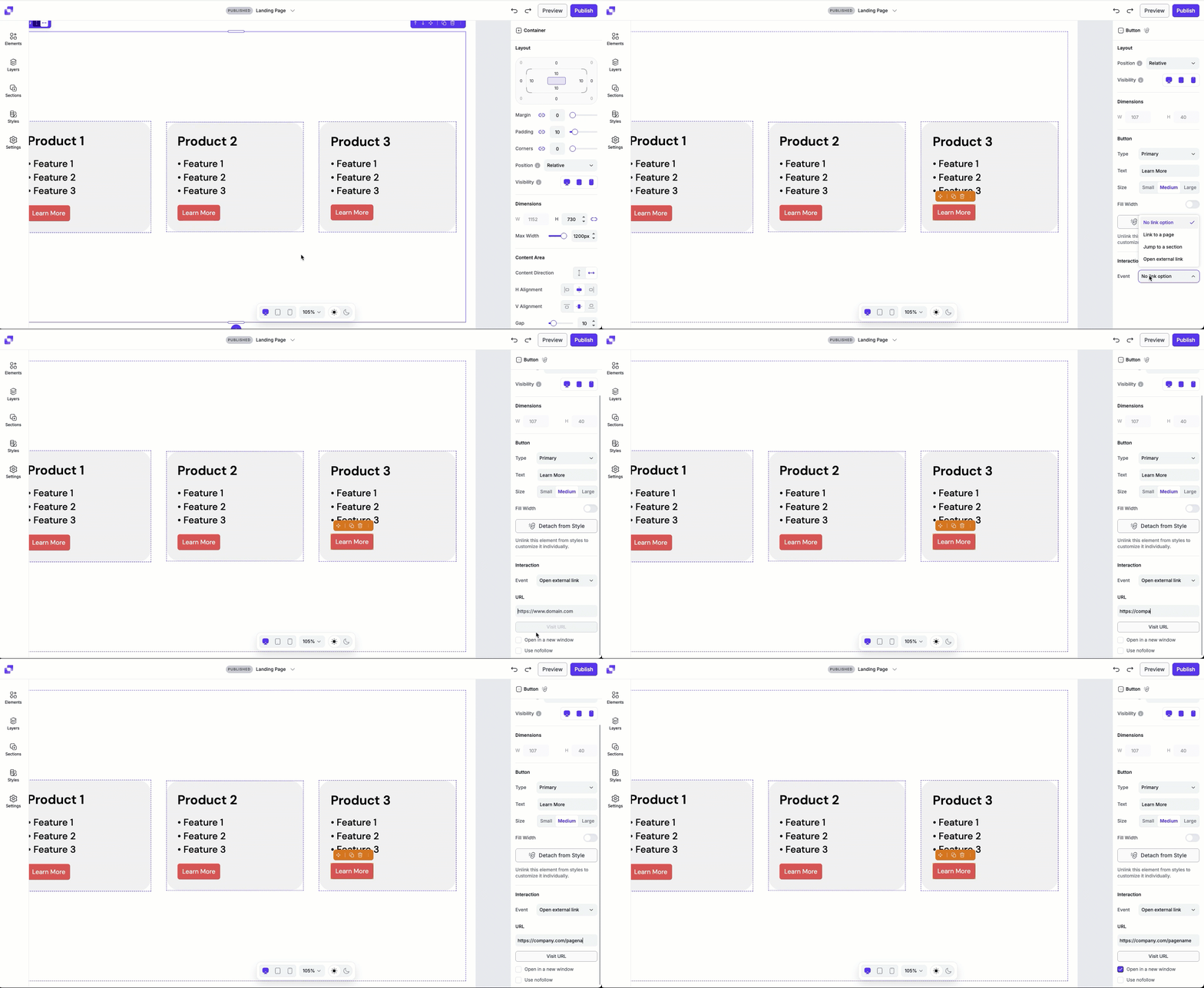
- Click an element to bring up its settings in the Edit panel. If working with text, highlight the text you’d like to link.
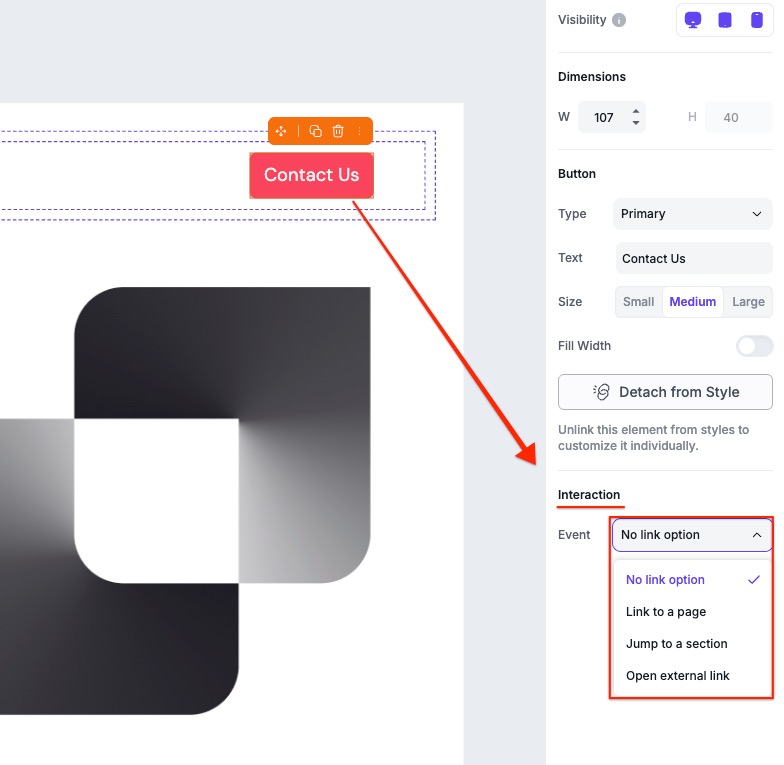
- Navigate to the Interaction section, at the bottom of the Edit panel.
- Click the Event dropdown field and select one of the available options:
• Link to a page
• Jumo to a section
• Open external URL - Configure the required fields that appear for each option (selecting the page, section, or adding an external URL).
Link options
Page Studio supports several link types, depending on your use case.
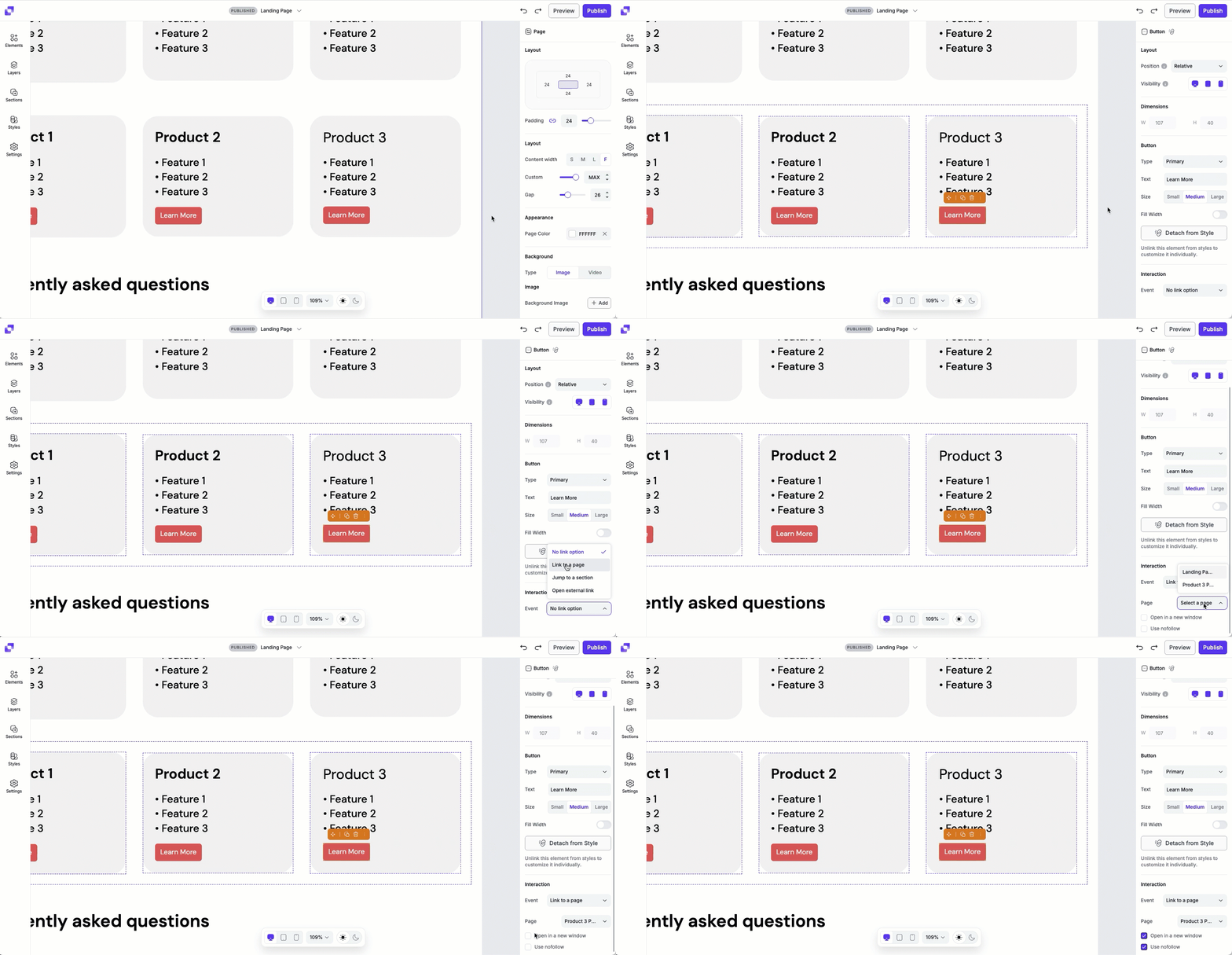
Link to another landing page
Link the element to another published Page Studio landing page. This option is great if you want to guide your visitors to follow-up pages or related offers.
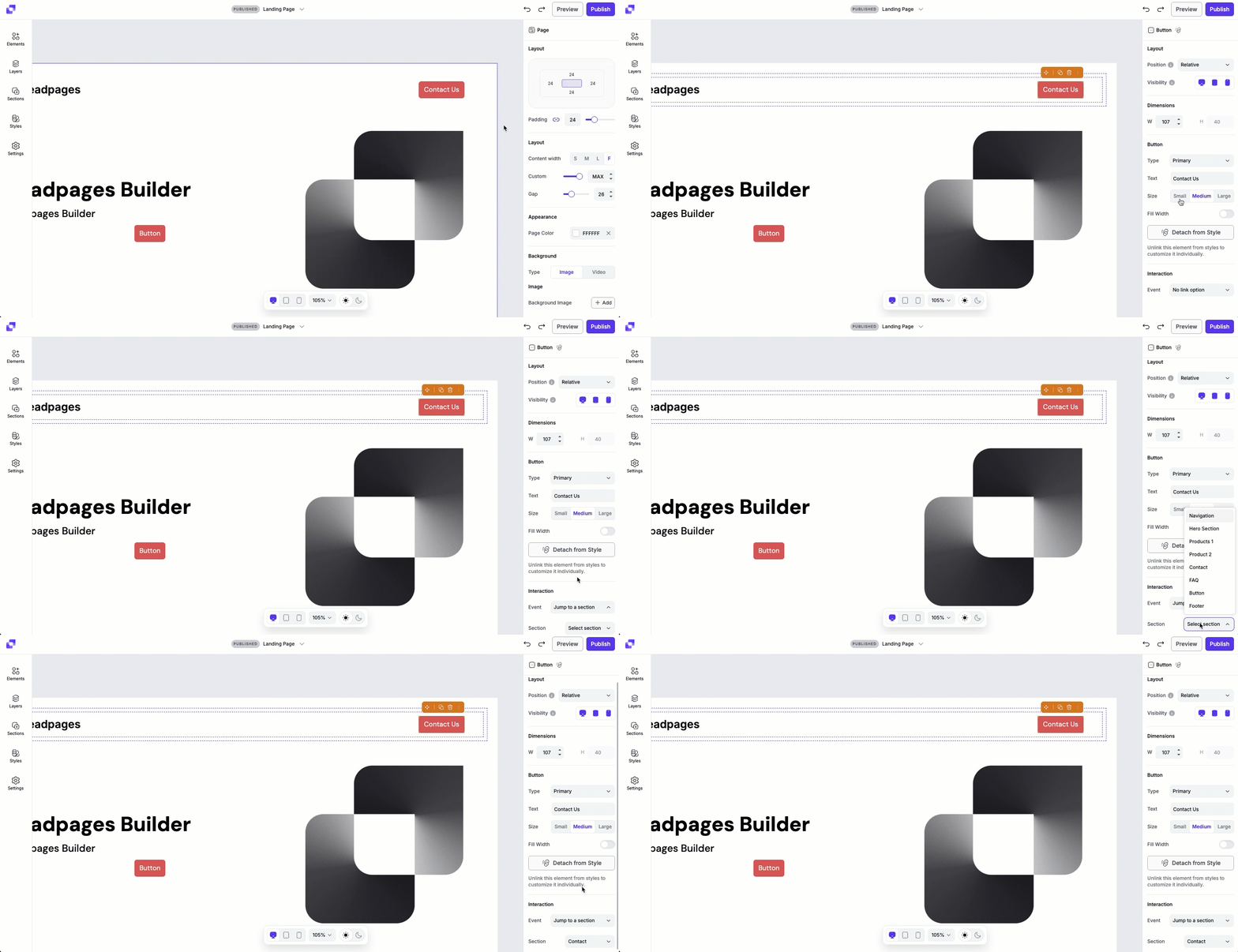
Link to another section on the page
Link directly to a specific container section on the same page. This is helpful for jump links, navigation-style buttons, or directing visitors to forms further down on the page.
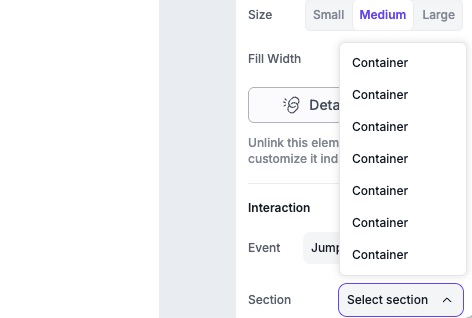
If you have not renamed any of your section containers, you will only see 'Container' listed as options to jump to.
To make it easier to locate the sections within this list, rename your sections either in the Layers panel or through the element's quick actions on canvas. Once renamed, you'll easily be able to locate the section within the Section dropdown list.
Link to an external URL
If your link leads to an external URL or landing page, you can configure it to open in a new window. It’s also possible to enable “nofollow” so your linked page won’t be indexed by search engines.
Remove or change links
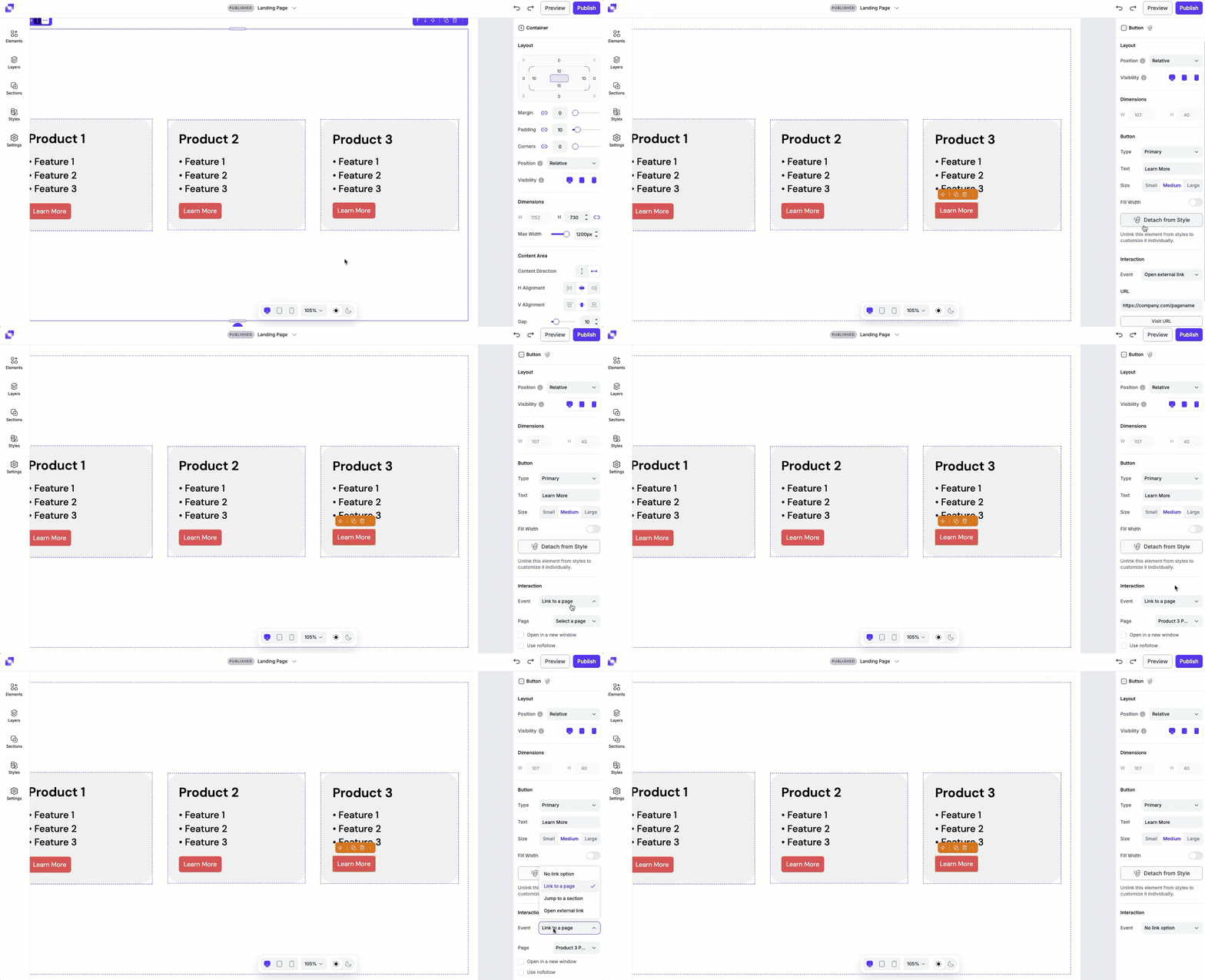
To get rid of a link or change it, simply:
- Click the element on canvas.
- Navigate to the Interaction section in the Edit panel.
- Adjust which page, section, or external URL is listed. Or, in the Event dropdown field, select No link option to remove a link.
Phone number, SMS and email links
Using the Open external link option, you can also create a link that triggers a phone call or an email.
A few things to be aware of:
- Most mobile operating systems automatically detect and turn phone numbers and emails into links, so it’s not always necessary to explicitly create links out of them.
- Email links always open to the default email client (such as Outlook, Apple Mail, etc.). Visitors who only use web-based email (such as the Gmail interface) may not be able to effectively use your link.
That said, you can hard-code a phone number, SMS, WhatsApp, or email.
Link to call
To link to a phone number, choose the Open external URL option, then input the text below:
tel:5551234567You'll then just need to replace the digits with your preferred phone number. When the linked element is clicked on the live page, the visitor's phone dialer will open.
Link to text message
You can use the same method above to initiate a text. This strategy is useful if you want your link to launch the page visitor's SMS client to send a text message to the number you're linking. In this case, you'll add this into the Open external URL field
SMS:5551234567Replace the digits in the example above with your preferred phone number.
Link to email
If you'd like your visitors to email you directly, you can add this in the Open external URL field to have the linked element open the visitor's default email client (Gmail, Outlook, etc.).
mailto:name@website.comJust replace the email in the example above with the address you want people to reach you at.
Link to WhatsApp chat
To link text or a button on your page to begin a WhatsApp chat, WhatsApp recommends using https://wa.me/<number> where the <number> is a full phone number in international format. Leave out any zeroes, brackets, or dashes when adding the phone number in international format.
https://wa.me/15551234567Click here for more information from WhatsApp.
Link to a Conversion Tools pop-up
If you want a button, image, or text element to trigger a pop-up on the page, then you will have to follow these steps:
- Create a Conversion Tools pop-up.
- Publish the pop-up.
- Follow the instructions in the Advanced Publishing Options for Pop-ups guide to create your pop-up's URL.
- Head back into your Page Studio page, and navigate to the Interaction settings of the element you want to connect the pop-up to.
- Select Open external URL, then paste your pop-url into the URL field.
- Make sure that the Javascript portion of your pop-up's code is added to the Head Section Tracking Code field within Settings>Scripts. This is detailed in the article linked above.
Link to a third-party form
Code cannot be added directly to elements. If you have a third-party form that you want visible on your page once visitors click on a linked element, you'll have to:
- Create a Conversion Tools pop-up
- Add and HTML widget into the pop-up, and place your third-party code within it.
- Publish the pop-up, then create the URL for the pop-up using the Advanced Publishing Options for Pop-ups guide.
- Add the pop-up URL to the element through the external URL option.
Frequently asked questions
I pasted a link into the text element. Why isn't the link working when I click on it on the live page?
Adding a URL into the text element is not enough to set up a clickable link. In order to set up a link, you have to go into the text element's settings, navigate to the Interaction section, and set up a link type.
Can I put HTML in a link?
No, only valid URLs can be used in links.
I linked an element up to a section on my page. When I click on that element on the live page, I don't see the section name in the URL. How do I set up the URL so that it shows the section name?
When you link an element to a section on your page, the live page URL will update to include the container ID (for ex: http://www.domain.lpages.co/pagename/#containerID). At this time, the URL cannot be customized to reflect the container name set in the Page Studio builder.
Do links work in the preview mode?
Yes, most links will work in the preview mode. If you add a Conversion Tools pop-up to an element, you will notice that you will be redirected to the pop-up rather than see it appear on the page in preview mode. To test out the functionality of all of your linked elements, visit the live page.
Need more help?
You can always get in touch with our support team—just click Support in your Leadpages navigation menu, or submit a ticket ↗