
Videos are a great way to tell a story, showcase a product, or share something with your audience. This element in Page Studio allows you to embed video from hosting sites like Wistia or YouTube directly on your pages.
The fine print
- This page goes over the video element for Page Studio. If you're using the Classic Builder, visit this article to learn more about how to use the video widget.
- Most browsers restrict autoplay with sound. Videos set to autoplay may start muted.
Grab the video URL or embed code
Once you have created and uploaded a video to a hosting site such as YouTube, Vimeo, or Wistia, you can embed it within Leadpages. You can add a video to your landing page either by adding the video URL or video embed code to the video element.
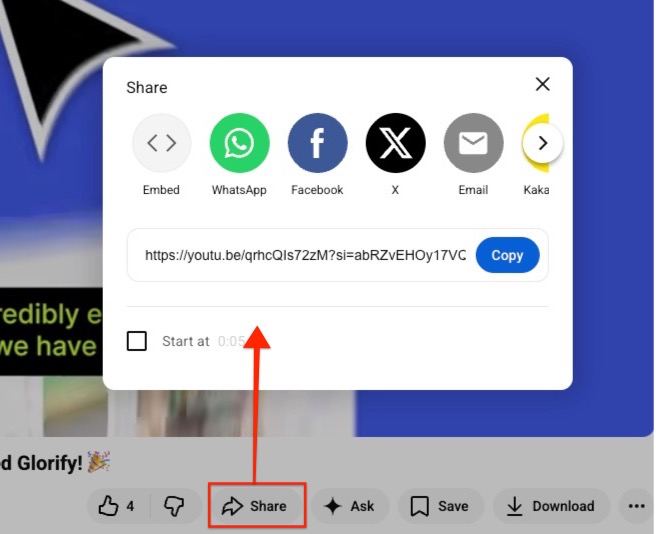
On YouTube, for example, you can find the URL and embed code by:
- Clicking on the Share button under the video
• The URL will be immediately visible for you to copy.
• The embed code can be accessed by clicking the Embed button, then copying the code visible.
Add a video to your page
To get started, simply click and drag the video element to the location you wish to add a video.
Open the Elements panel.
- Drag and drop the video element onto your page.
- Alternatively, if you have an empty container, you can select Add Video to quickly add one.
- Once added, you can add a video to the element by:
• Clicking on the video element on the canvas to access its settings in the Edit panel.
• Pasting the video URL or embed code under the Type field (depending on which one you have selected, URL or Embed)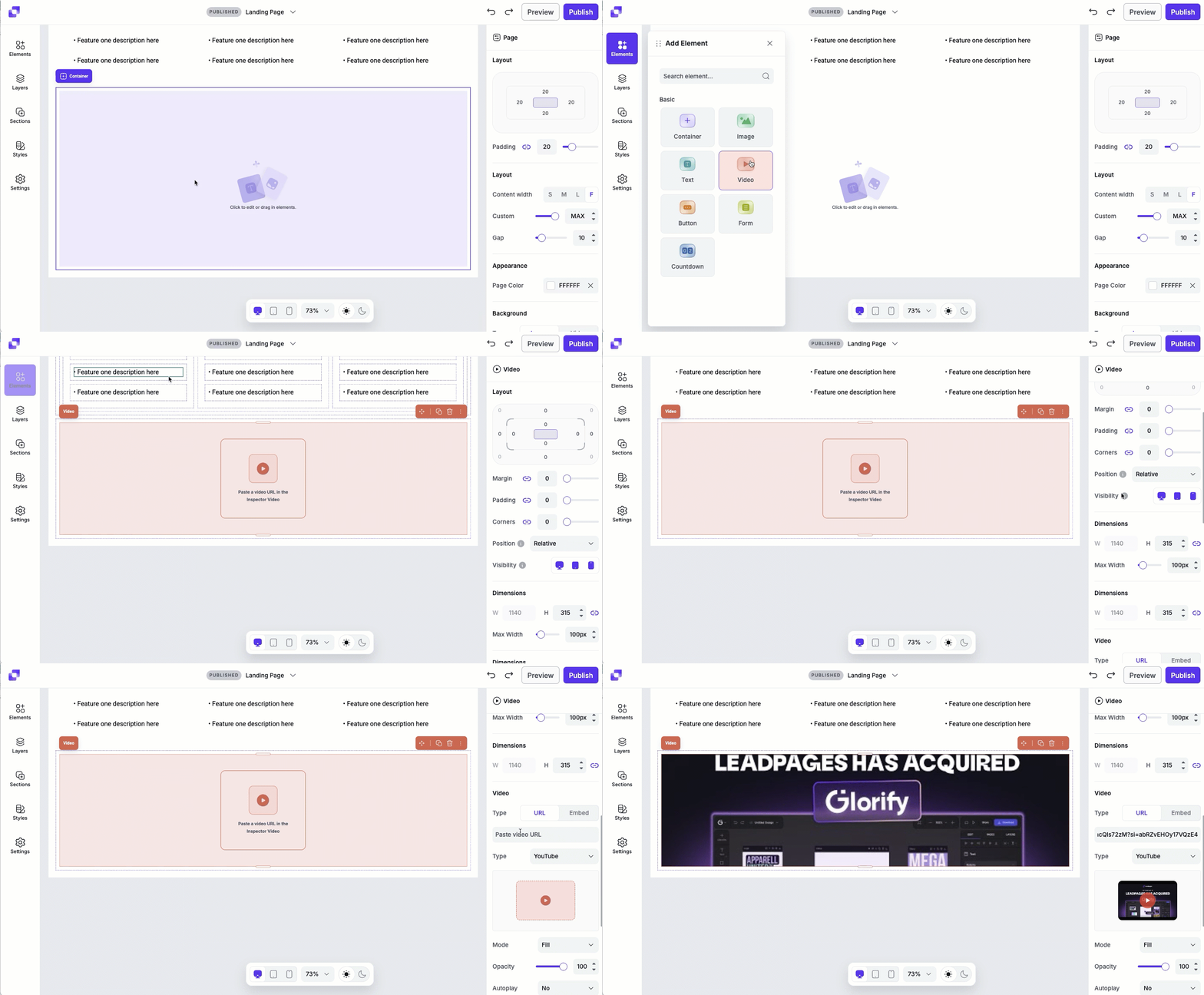
Resizing your video
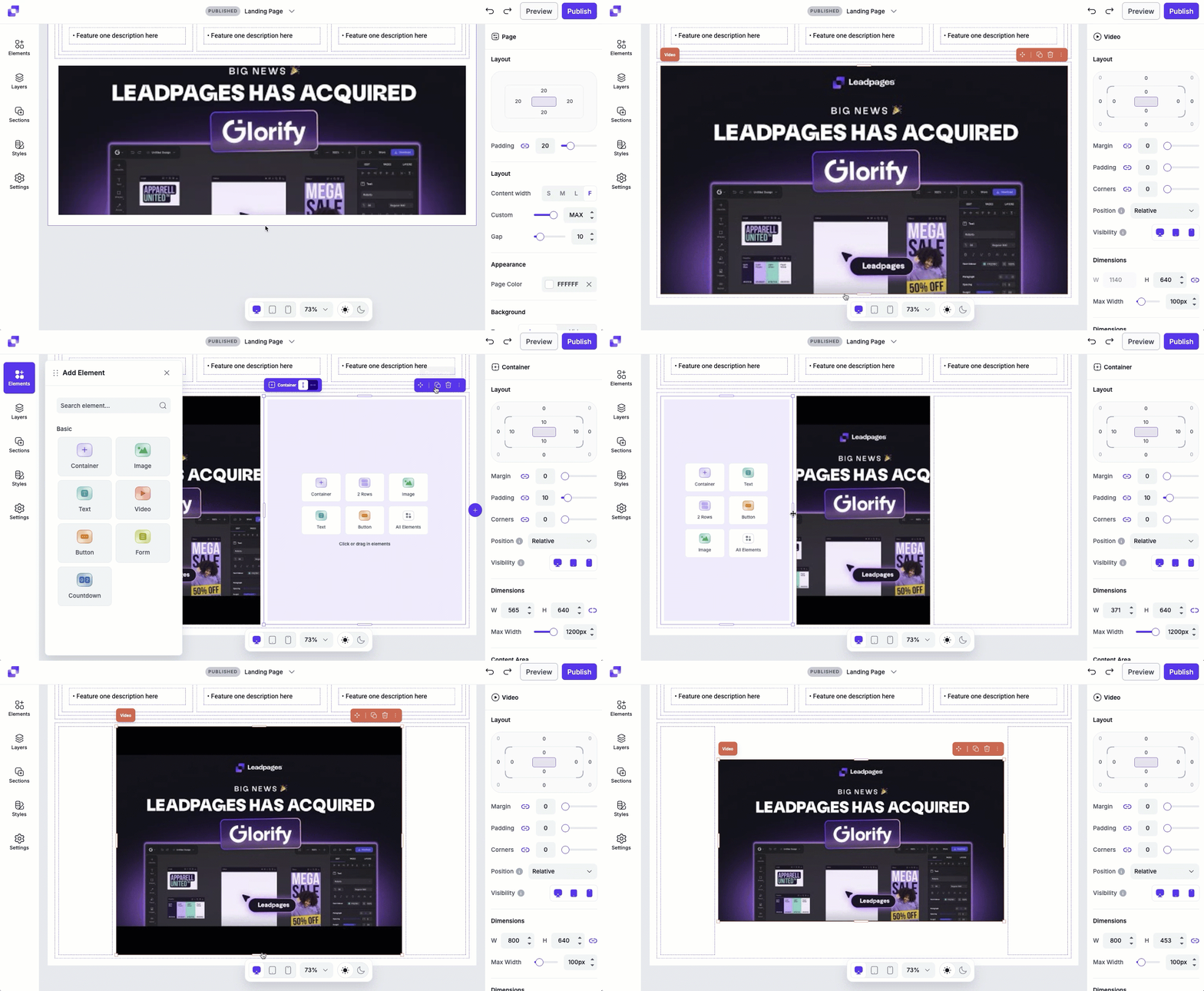
Once your video is placed on the page, it will expand or shrink to fit the container its embedded in. Resizing the container that the video nests in is the best way to control the video size. You can also add additional elements to the same container as the video to reduce the video's size.
Removing or replacing a video
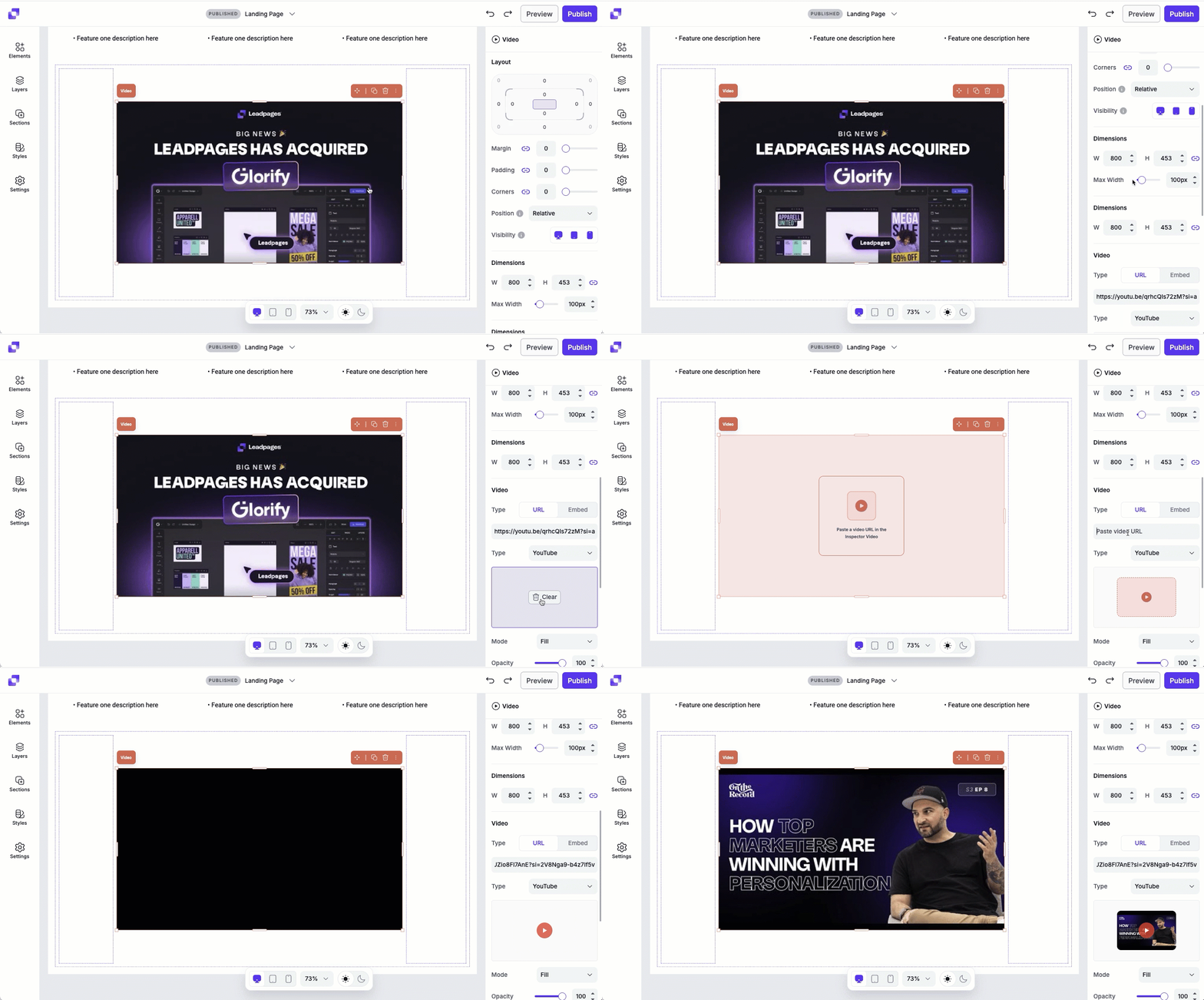
Need to change the video? You can replace or remove it in just a few clicks.
- Click the video element on the canvas.
- In the Edit panel, hover over the video preview.
- Click Clear to remove the added video, or delete the video URL/embed code under the Type field.
- Add in a new video URL or embed code if needed.
Canvas quick actions
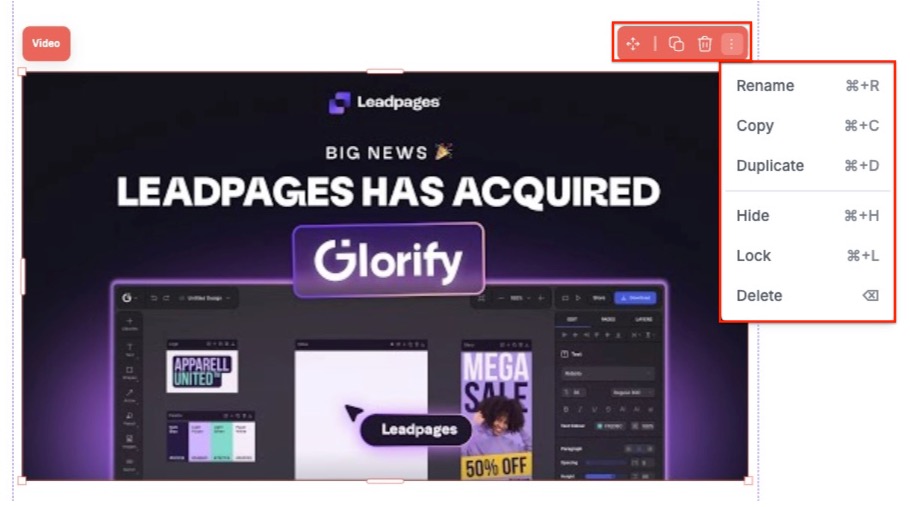
Each video includes a quick actions menu that lets you make fast changes. From this menu you can:
- Rename the video element.
- Copy the video to paste elsewhere on the page.
- Duplicate the video, which will appear under or to the right of the video (depending on the direction of the container the text sits it).
- Hide/Show the video.
- Lock/Unlock the video. Locking an element can help prevent accidental edits or movement.
- Delete the video element from the page.
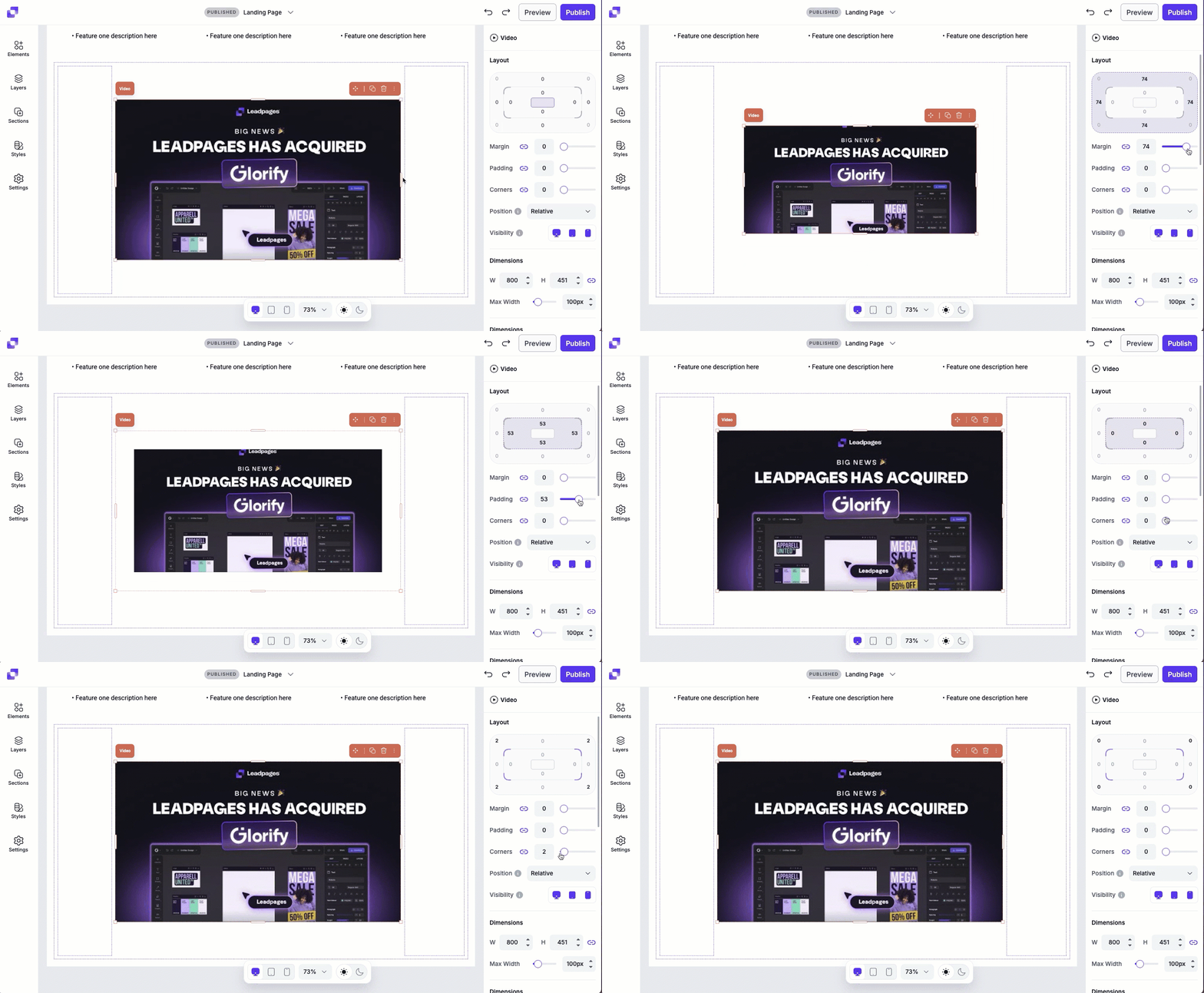
Video layout settings
Under Layout, you can adjust the padding, margin, and corners to control how the video element fits within its parent container. You’ll also be able to adjust its position and visibility. To learn more about the Layout settings, in general, you can visit this article.
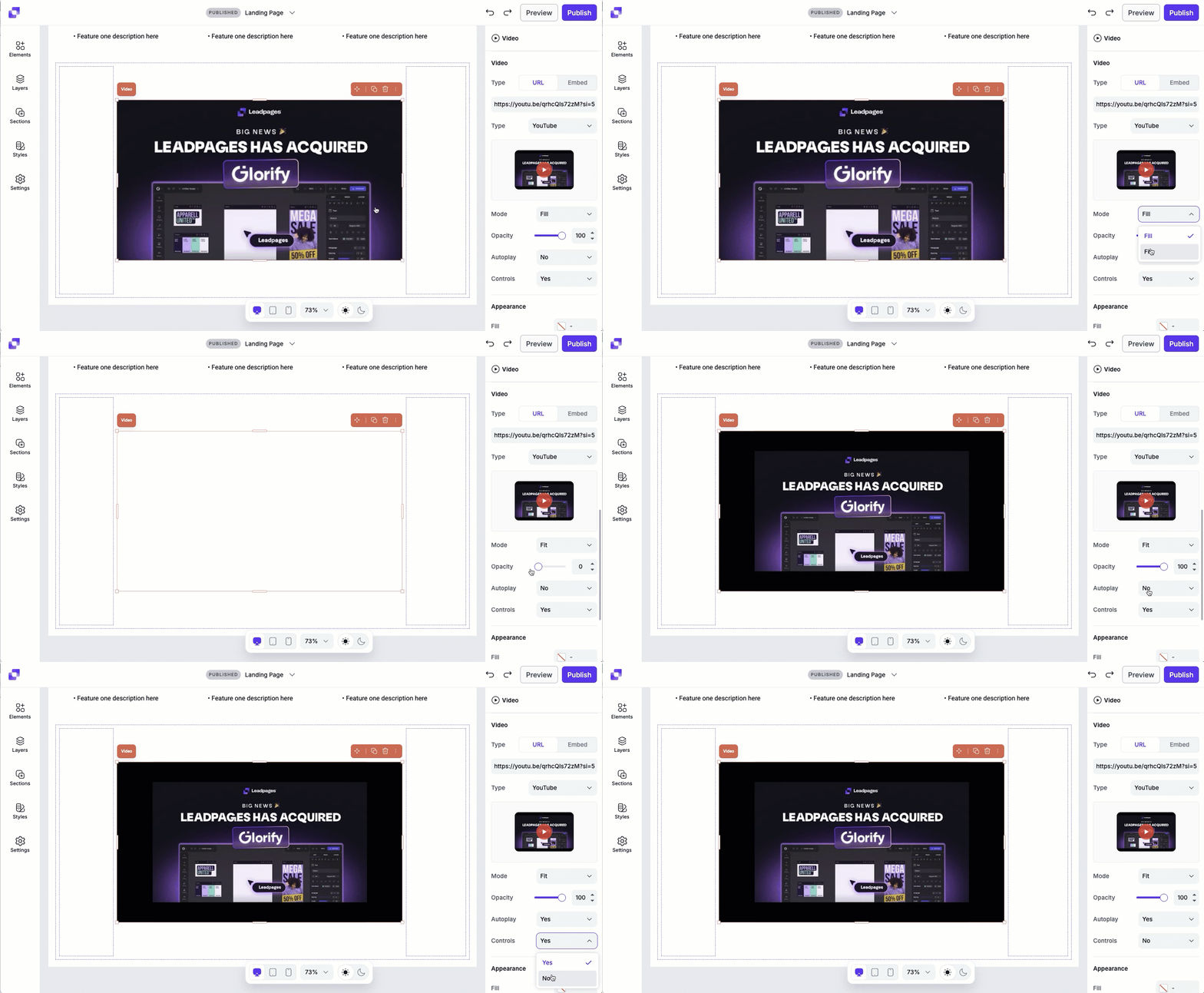
Video settings
The video settings control how your video plays and how it fits within the video element.
- Type: Select the video provider that you're using (Youtube, Vimeo, Wisita)
-
Mode: Choose how the video fits inside the video element:
• Fit shows the full video without cropping.
• Fill scales the video to fill the element, which may crop the edges. - Opacity: Adjust the transparency of the video. Lowering the opacity can reveal the container/page background color, or even the video's Fill color.
- Autoplay: Chose whether the video plays automatically when the page loads.
- Controls: Toggle video controls on or off to let visitors play, pause, or adjust the volume.
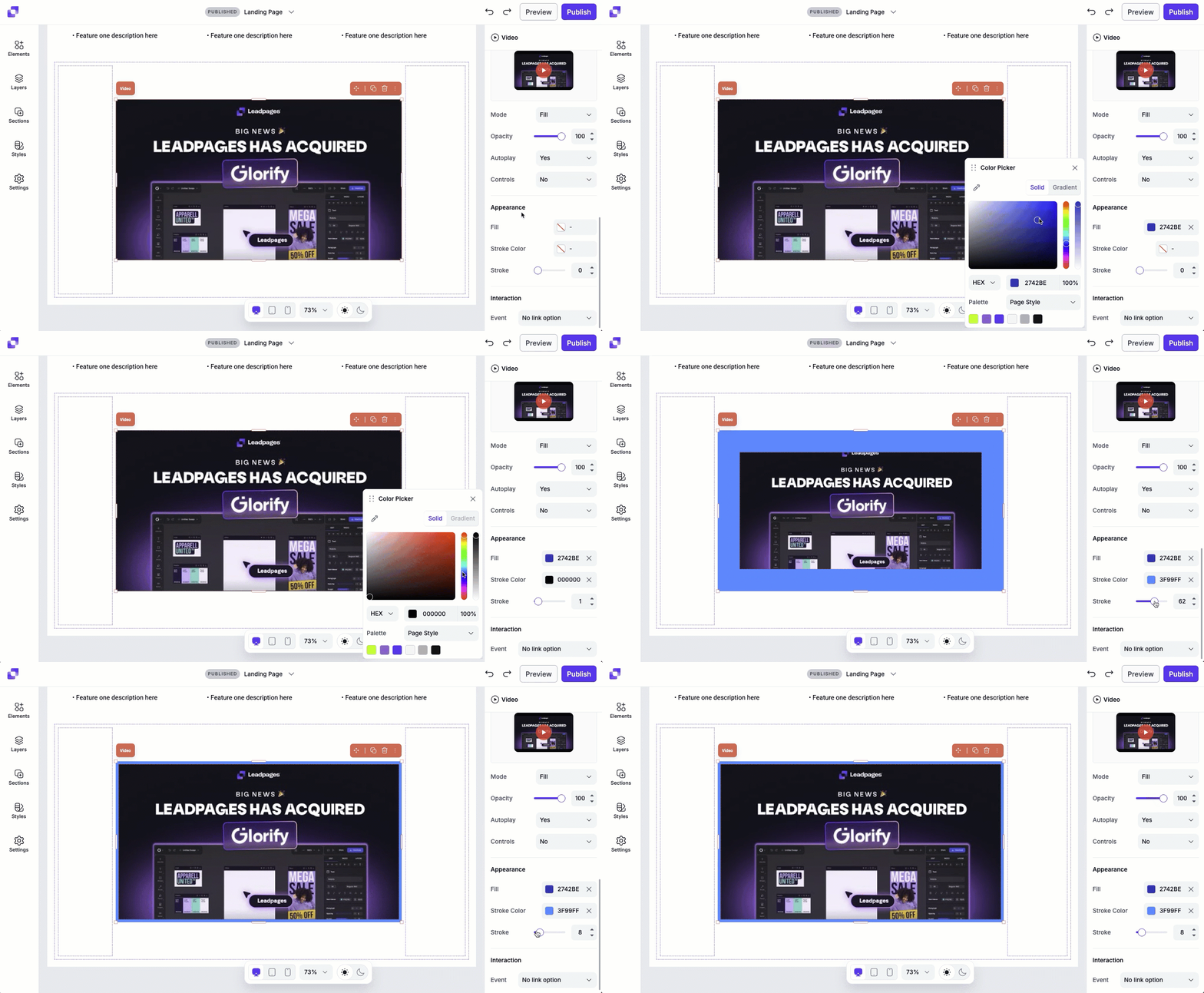
Video styles
The video styles settings let you customize the visual appearance of the video element itself.
- Fill: Set a background color behind the video. You'll be able to see the fill color if you adjust the opacity of the video.
- Stroke color: Choose a color for the border around the video element.
- Stroke width: Adjust the thickness of the stroke border.
Frequently asked questions
Why isn’t my video playing?
Videos do not play within the builder itself—though you should see a preview image of your video. You'll be able to interact with the video on your page's live URL or in Preview mode.
If your page is published to a secure server (i.e. at a URL beginning with https://) but your video is hosted on a non-secure server (i.e. http://) it may not play. You’ll need to either adjust your embed code to use https:// or publish your page to a non-secure server.
Can I autoplay my video?
The settings within the Edit panel do provide an option to set autoplay on. Keep in mind, not all browsers (Chrome for example) allow the ability to autoplay videos so that may create an inconsistent experience for your viewers.
Can I upload a video file directly from my device?
In order to generate an embed code or URL, videos must be uploaded to a video hosting service. It is not possible to upload your video files directly into Leadpages.
Need more help?
You can always get in touch with our support team—just click Support in your Leadpages navigation menu, or submit a ticket ↗