
Whether you're collaborating with teammates, inviting guests for feedback, or exporting your work to use elsewhere, sharing and downloading makes it easy to get your designs into the right hands.
Sharing designs
Shareable link
Want to share your design with someone? You can create a shareable link directly from the editor.
- In the editor, click the Share button.
- Choose the permission level under Link Access (Edit, View & Copy, or View Only).
- Click Copy Link.
- Share the link with anyone you need.
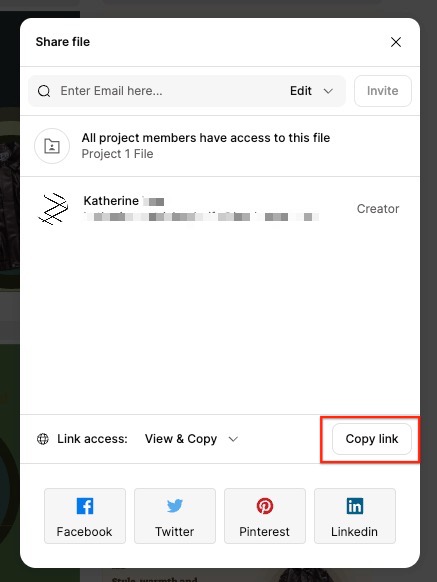
If you know the email address of someone outside your team, you can also invite them as a guest to your design. Just add their email address and click Invite. Once invited, the guest will receive a URL of the design by email and they will appear in the list of members who have access to the design. You can also view and manage them under Workspace Settings>Members>Guests.
Adding team members to designs
To share a design with a team member, you can add their email address in the Share modal, or you can move the design into a project that they have access to.
Downloading designs
To download the entire design
- Click the editor background.
- Click the Download button in the top right corner of the editor.
- In the Selected Pages dropdown, choose which pages you want to include in your download. All pages will be included by default.
- Click the button of the file type you want to download.
To download a specific canvas
- Click on the canvas you want to download.
- Click the Download button.
- Click the button of the file type you want to download.
Downloading edited images
You can download your edited images from either the dashboard or directly within the editor.
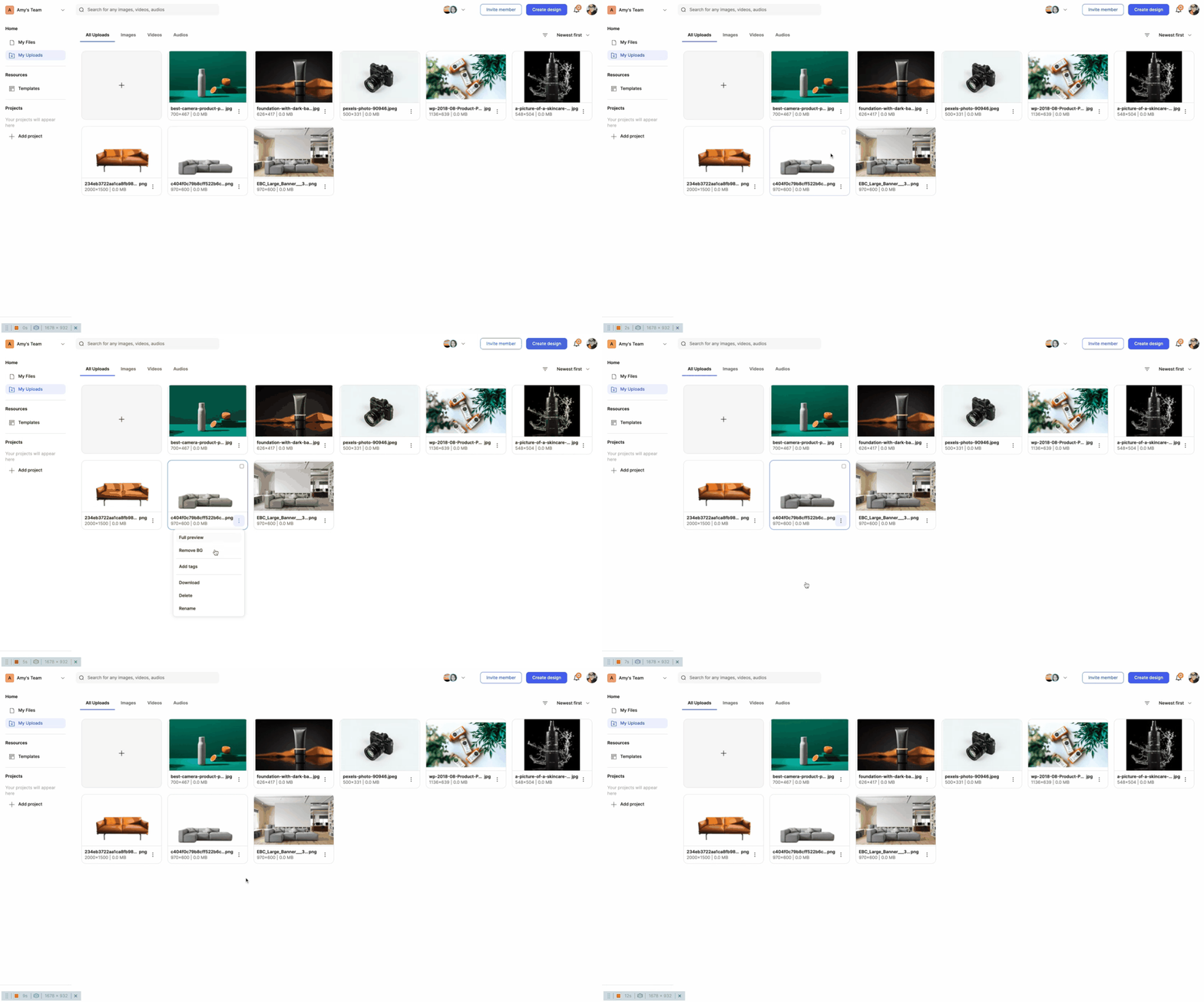
From the dashboard
- Navigate to My Uploads.
- Click on the ⋮ (More) icon on the image you want to download.
- Select Download.
From the editor
- Click the Images icon in the toolbar.
- Select Uploads.
- Add the desired image to your canvas and ensure it is selected.
- Click the Export button in the top right corner of the editor.
- Click Download.
Downloading an image with a transparent background
You can export a single image or the entire canvas with a transparent background, depending on your needs.
Downloading a single image
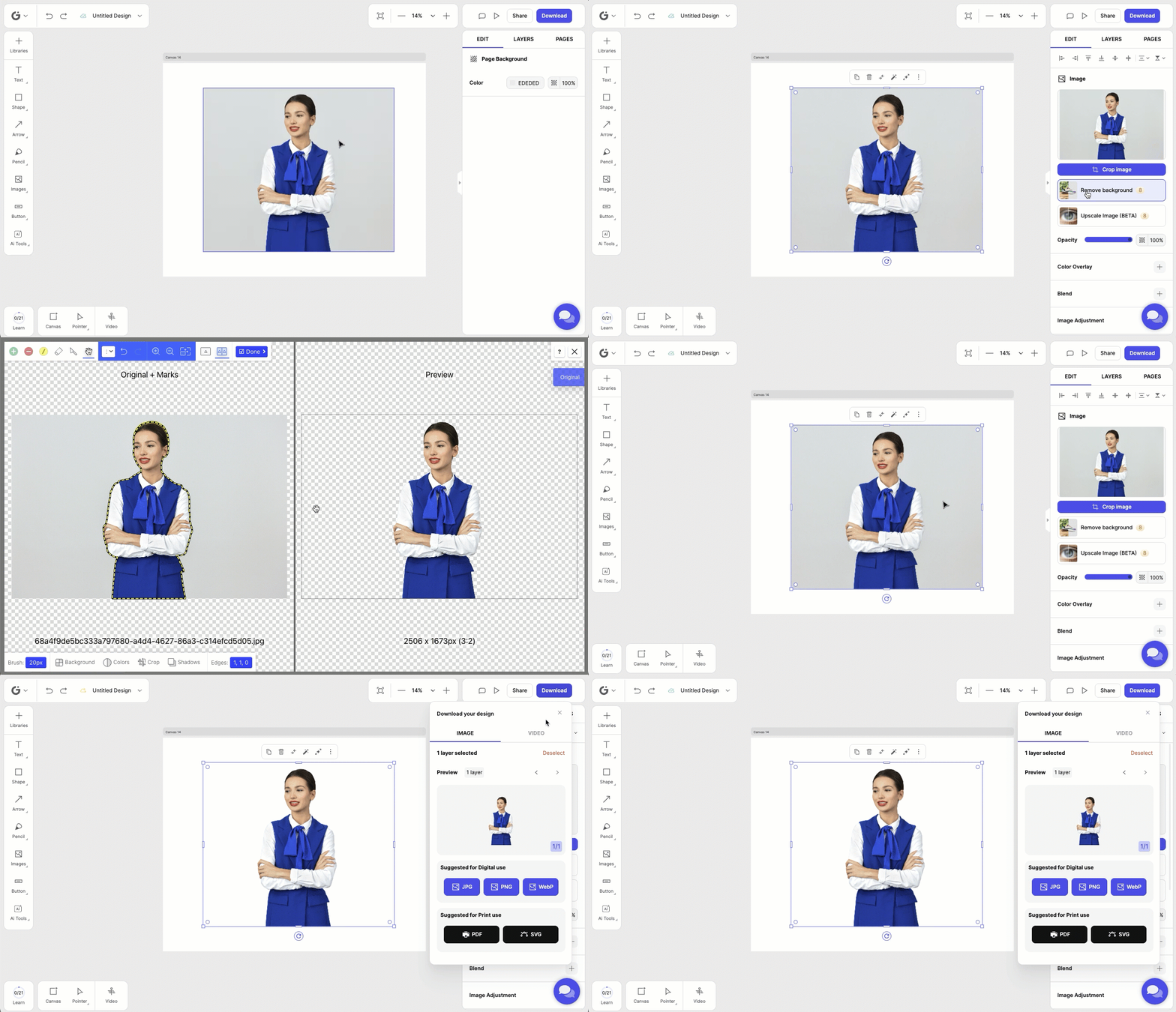
- Select the image you want the background removed on.
- In the Edit panel, click Remove Background to make the image itself transparent.
- Make sure that the image is selected on the canvas, then click Export.
- Choose PNG to download only the selected image with a transparent background.
Downloading the whole canvas
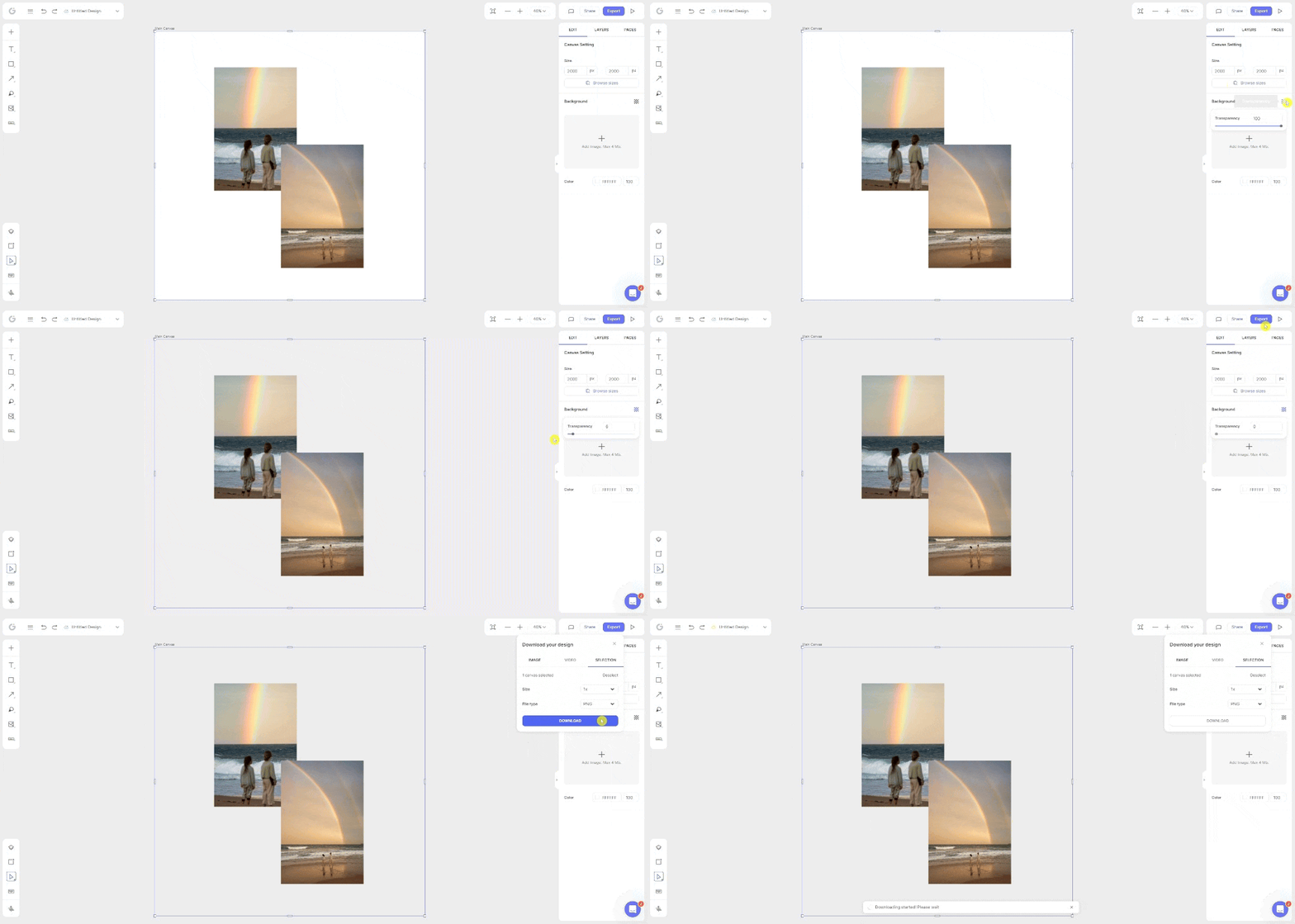
- Click on the canvas to open the Edit panel
- Under Background, drag the opacity slider to 0 to make the background transparent.
- Click Export and download your image.
Frequently Asked Questions
Why is my downloaded design appearing blank/why aren't some elements appearing?
This usually happens because of our layers are ordered. For example, a rectangle sitting on top of other elements in the Layers panel—even if it looks behind them on the canvas—can cause the final download to render like some elements are missing. Reorder your layers so any background elements sit at the bottom of the layers list within your canvas.
Why does my downloaded image look blurry or pixelated?
Blurriness can be caused by exporting at too small of a resolution. Downloading a larger design (e.g., 3125x1875) as a smaller PNG will reduce image quality. Try exporting at a higher resolution such as x2 or x3.
Why does my design look blurry on Facebook?
If the image only looks blurry on platforms like Facebook, this is normal. Facebook compresses uploaded images. Using x2 or x3 exports often helps reduce the appearance of compression.
Why is my design taking a long time to download?
Slow or failed downloads are usually related to canvas size or file size. Extremely large canvases (e.g., 30,000x20,000) are too big to render and should be reduced—ideally keep at or below 5000px on the longest side. Large file sizes (5MB+) may also take noticeably longer to download. Reduce the canvas dimensions, then retry the download.
← Explore more Glorify articles
Need more help?
You can always get in touch with our support team—just click Support in your Leadpages navigation menu, or submit a ticket ↗