
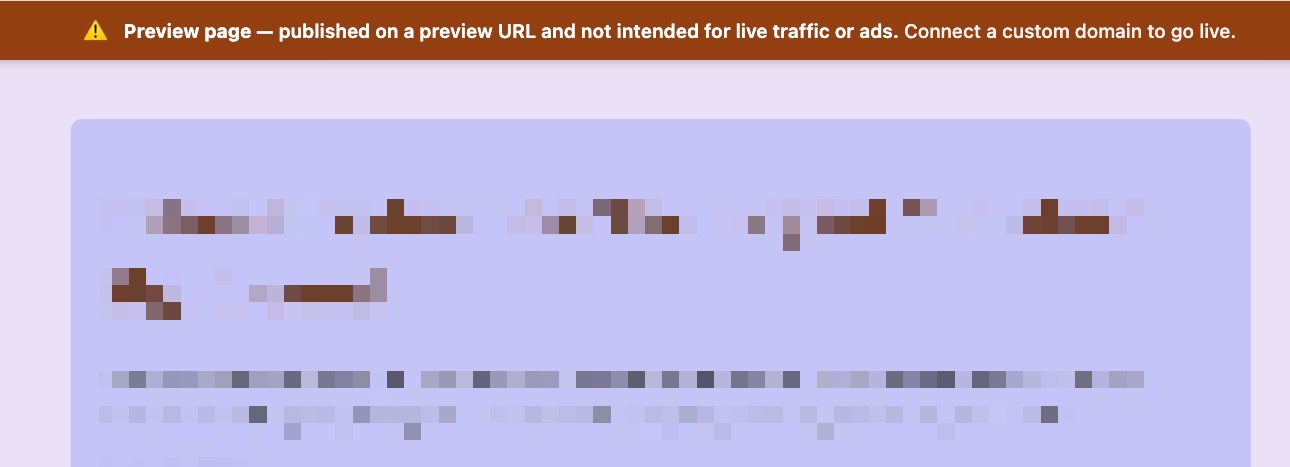
When you publish a page, you may notice a banner at the top that says your page is on a Preview URL. This article explains what that means, why we recommend moving to a custom domain, and how to claim the free custom domain included with your account.
What is a Preview URL?
Every account comes with a built-in publishing domain so you can get a page live in seconds without any setup. It looks something like this:
your-name-1328.lpcontent.net/newsletter
Pages on this address work exactly as designed. Your page is live, fully functional, and collecting leads or sales right now. The banner is simply a heads-up that this is a shared, temporary address meant for previewing and getting started quickly, not for running long-term campaigns or paid traffic.
Think of the Preview URL as a starting point. When you are ready to share your page widely, run ads to it, or send it to customers, we strongly recommend publishing to a custom domain instead.
Why publish to a custom domain?
A custom domain is your own web address, like yourbrand.com or go.yourbrand.com. Moving your page there gives you real, measurable advantages:
- Higher trust and conversions. Visitors trust a URL that matches your brand far more than a shared address they do not recognize. Your own domain in the address bar reassures people the page is legitimately yours.
- Better ad performance. Ad platforms reward landing pages on your own domain with stronger quality and relevance scores, which can lower your cost per click and improve placement. Ads pointed at a shared preview address often perform worse or get restricted.
- A consistent brand. Your landing pages, site, and links all live under one address that reinforces your business instead of ours.
- Full control of your reputation. A shared address is used by many accounts at once, so its standing with search engines and email providers is shaped by factors outside your control. Your own domain puts that reputation entirely in your hands.
- The banner goes away. Once your page is served from a custom domain, the Preview URL banner no longer appears.
Good news: your first custom domain is free for a year
Every annual subscription includes one free custom domain registration for one year, so most customers can move off the Preview URL at no extra cost.
A few things to know:
- The offer becomes available once your free trial converts to a paid annual subscription.
- You can redeem it any time within your first year.
- It covers one available domain. If the exact domain you want carries a premium price, the free credit is applied toward it and you pay only the difference.
- After the first year, the domain renews at the standard rate plus tax, billed directly by our registration partner. You can manage or cancel that renewal in your account with the registration partner at any time.
How to claim your free domain
- In your dashboard, go to Manage > Custom Domains.
- Click Connect Domain, then choose Claim Free Domain.
- Search for the domain you want and follow the checkout steps with our registration partner.
- That's it. The domain connects to your account automatically, with no manual DNS setup required.
Your domain will appear in the Custom Domains section of your account. It can take up to 48 hours for the SSL certificate to finish securing your domain, after which your pages are served securely over HTTPS with the padlock icon in your visitor's browser.
Already own a domain? Connect it instead
If you already have a domain, you can connect it rather than registering a new one:
- Go to Manage > Custom Domains and click Connect Domain.
- Enter your root domain (for example,
yourbrand.com) or a subdomain (for example,go.yourbrand.com). - Choose what the domain should point to: a landing page, a site, or a blog.
- Authorize the automatic connection. For most popular registrars, you simply sign in and we configure the DNS records for you. If your registrar is not supported, we provide the exact records to add manually.
go.yourbrand.com) so your existing site stays exactly where it is.Your pages remain hosted on our servers and secured with a free SSL certificate that we provision and renew automatically.
Frequently asked questions
Is my page still live while it is on the Preview URL?
Yes. Your page is fully published and working. The banner does not affect how your page functions for visitors.
Will I lose my leads or data when I move to a custom domain?
No. Moving to a custom domain changes the address your page is served from. Your page, form entries, and settings stay intact.
Does the Preview URL banner disappear on a custom domain?
Yes. Once your page is served from your custom domain, the banner no longer shows.
How much does the domain cost after the first year?
The first year is on us. After that, the domain renews at the registration partner's standard rate plus tax, billed by them directly.
Can I connect more than one domain?
Yes. Your plan includes a set number of domain connections, and only the first domain is covered by the free-year offer. If you reach your plan's limit and would rather not upgrade, you can purchase additional domain connections individually and stay on your current plan.
How long does setup take?
For supported registrars, automatic setup takes just a couple of minutes. SSL can take up to 48 hours to finish securing your domain.
Need more help?
You can always get in touch with our support team—just click Support in your Leadpages navigation menu, or submit a ticket ↗