
Search engine optimization (SEO) and social preview settings help control how your landing page appears in search results and when it's shared on social media. In this article, you'll learn where to find these settings in the Page Studio builder, what each field does, and best practices for optimizing your page for visibility and clicks.
The fine print
- This article goes over how to edit the SEO and Social Preview settings in Page Studio. For information on how to adjust them in the Classic builder, visit this article.
- SEO and social preview settings only take effect after your page is published and/or updated.
- Updates to social previews may not appear immediately due to caching by social platforms.
Accessing SEO & social preview settings
In the Page Studio builder:
- Navigate to the Settings panel on the left-hand side.
- Expand SEO and Social Preview to view and edit the available settings.
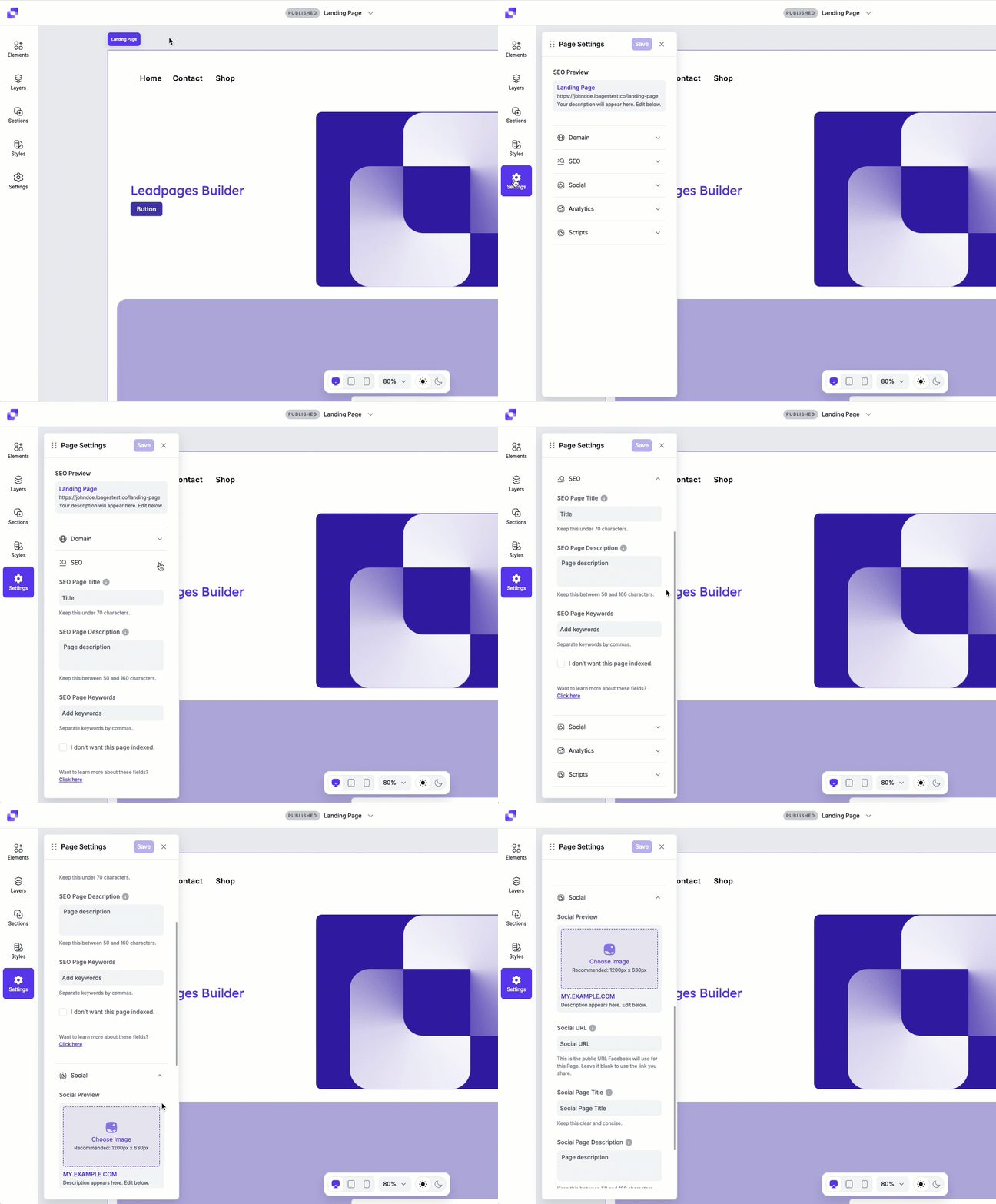
SEO settings
What is SEO and why does it matter?
Search engine optimization (SEO) helps search engines understand what your page is about so it can appear in relevant search results. SEO is a complex topic, so we won’t cover all the details here. The good news is that a lot of best practices are built into Leadpages already—such as mobile responsiveness and structured HTML.
Available SEO fields
Finally, you can set the title, keywords, and description of any page or site in the Settings tab under the SEO tab.
- SEO page title: The title that appears in search engine results and browser tabs. Make sure to keep it relevant to the page's content.
- SEO page description: A short summary of your page that appears beneath the title in search results. This doesn't directly affect rankings but can influence whether users click your page.
- SEO Keywords: Keywords help describe the main topics of your page. Use relevant terms your audience may search for, and avoid keyword stuffing.

If you’re unsure what to put in your page or site’s SEO fields, review this article from Google: Create good titles and snippets in Search Results ↗
Indexing
Indexing controls whether search engines are allowed to include your page in search results. For private pages or test pages, you may want to prevent indexing. To prevent indexing, all you need to do is make sure that the 'I don't want this page indexed' box is checked, and the page updated.

Headings (H tags)
Heading tags (H1, H2, H3, etc.) help SEO because they give search engines a clear, structured outline of your page's content. They act as priority markers, and they let the search engines determine what topics are most important on the page.
- H1 tags denote the main topic of the page.
- H2 tags mark key sections.
- H3+ tags provide supporting details of the page.
Headings can be applied through the text element. You can learn more about how to apply a text type in the text element in the article here. Currently, our builder supports these H tags:
- Headline 1 = <h1>
- Headline 2 = <h2>
- Headline 3 = <h3>
- Headline 4 = <h4>
- Headline 5 = <h5>
- Headline 6 = <h6>
To customize the look of each heading type, take a look at our article on style kits.
SEO resources
For additional tips, check out:
- Google’s Webmaster Guidelines. While you may not be able to implement every single best practice, their guide provides handy advice for optimizing your pages.
- Google: SEO Starter Guide
- Leadpages Blog: 13 Ways to Get Your Pages Found
- Leadpages Blog: How to Take Advantage of Organic Traffic
- Leadpages Blog: High Impact Landing Pages to Boost Search Visibility
Social Preview settings
Social preview settings control how your page looks when shared on platforms like Facebook, LinkedIn, or X. These previews help set expectations and encourage clicks.
Social platforms use Open Graph tags to generate your social preview. Our builder includes the option to easily customize the Open Graph information social networks use to generate a preview when you (or one of your customers) posts your page or site to their social profile.
Default preview
If the social preview fields are left blank, social platforms may automatically pull information from your SEO settings or page content. This can lead to inconsistent or unintended previews.

Available social preview settings
- Social page title: The headline shown in the social preview.
- Social page description: A short description that appears below the title.
- Social image: The image displayed when your page is shared. Click on Choose Image in the preview to add an image. For best results, use a clear, high-quality image sized for social platforms.
- Social URL: The URL for your page. Short, descriptive URLs are easier to read and share.

Advanced options
While it's completely optional, there may be certain cases in which you'd like to manually add additional information for social networks to use, such as the type of content you are sharing. If you're familiar with Open Graph tags and would like to add more to your page or site, you can do so in the Head Section Tracking Code area, as shown below.

- For a full reference of object properties that Facebook supports, please see: https://developers.facebook.com/docs/sharing/webmasters/
- For more information about Open Graph tags—and for a list of other tags you can include—visit http://opengraphprotocol.org/
Twitter/X cards
Twitter/X uses different meta tags called Cards. This platform will use the information you placed in the social settings in Leadpages, but cards can also be added to the tracking code section of your page or site along with the Open Graph tags. For more information and instructions for Cards please visit this page.
Updating cached previews
When sharing a URL on Facebook, Twitter/X, LinkedIn, and other social media platforms, the preview of your page may appear different than you expected. It's often due to a caching of a previous version of that URL by the social networks. If your updated preview isn't showing:
- Facebook: Use the Facebook Sharing Debugger to rescrape your page.
- LinkedIn: Use the LinkedIn Post Inspector tool to refresh the preview.
- WhatsApp: This app does not have a tool to clear the URL cache, but the system typically refreshes the cache within 24-48 hours.
After clearing the cache, your updated social preview should appear when the page is shared.
Frequently asked questions
Where can I update the favicon for my page?
There isn't a way to upload a favicon into the Page Studio pages at this time, but the feature is coming soon!
Why isn't my social preview image appearing on Facebook or in the Sharing Debugger?
Social platforms like Facebook and LinkedIn have specific image size and aspect ratio requirements for link previews. If the image you set in Leadpages doesn't meet those requirements, the platform may not display the image at all.
Why isn't my page appearing in Google's search engine?
This can happen is the page is set to not be indexed, isn't yet published, or if Google's bots have yet to index it.
While crawling from Google can take a few weeks sometimes, you can request Google to crawl your page again so that it appears within their search console. You can learn more about how to index your page with Google here.
I have a page title set for SEO —why isn't it showing in Google's Search Console?
To have Google display the correct SEO information for your page, you need to request another crawl of your page.
I put my URL through the LinkedIn Post Inspector tool and the social preview image still hasn't updated. What do I do?
If using the inspector doesn't work, you can alter the URL by adding a query parameter, and LinkedIn should treat the link as a new source. For example, if your page or site’s URL looks like this…
https://abc.lpages.co/ebook-offer …you can change it to something like
https://abc.lpages.co/ebook-offer?q=1Sharing the modified URL should ensure LinkedIn uses any new meta tags you’ve added.
Need more help?
You can always get in touch with our support team—just click Support in your Leadpages navigation menu, or submit a ticket ↗