
Sections are the building blocks of your page, used to organize content into clear, structured areas. From headers and content blocks to CTAs and footers, each section helps organize your page and highlight the most important information to your visitors.
The fine print
- Page Studio section templates are not available in the Classic Builder.
- Once a section template has been added to a page, its layout can be further customized.
- After customizing a section, you can save it to use across all of your other Page Studio pages.
What is a section?
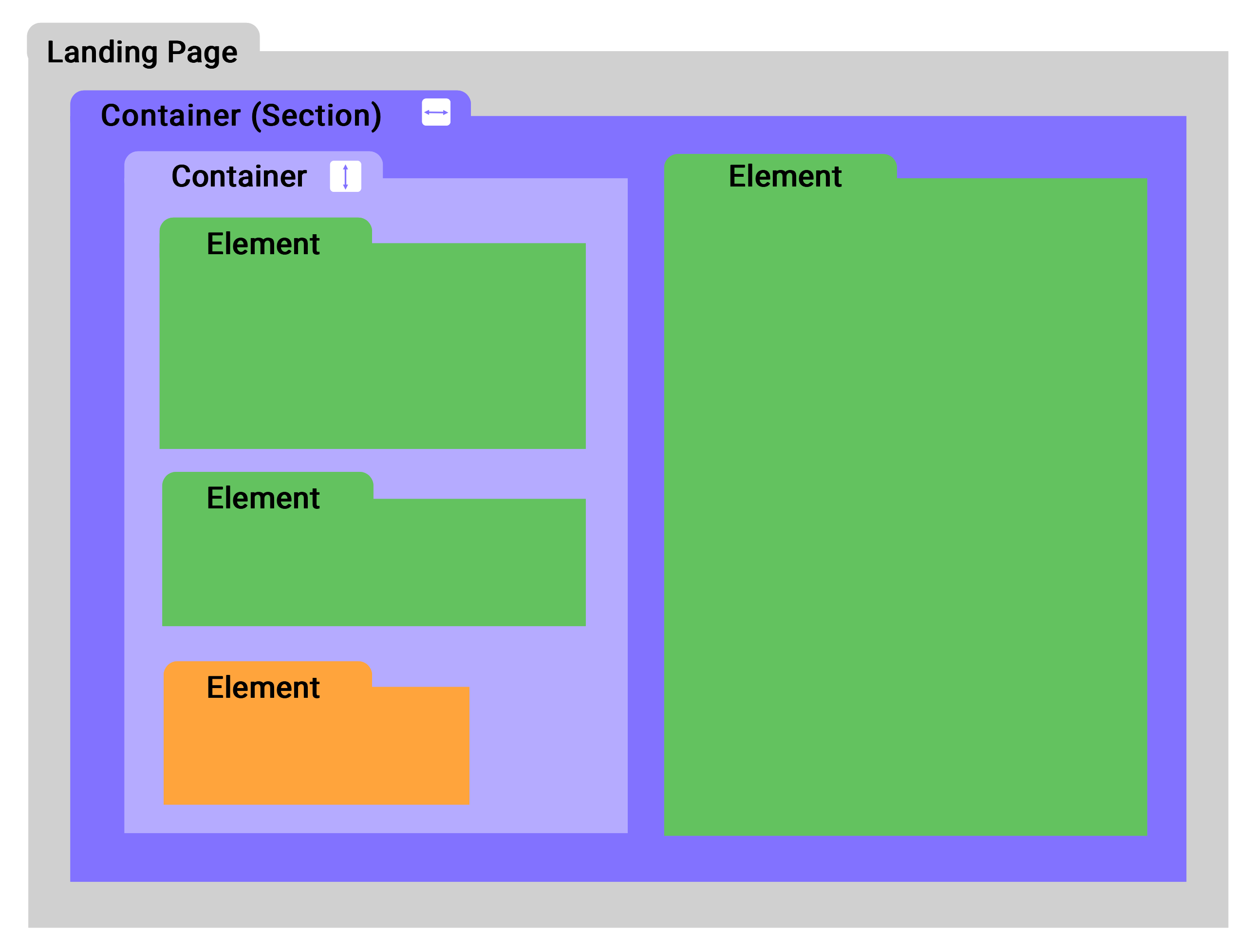
A section is the top-level container on a page and acts as a parent for all other elements within it. Each section holds and organizes content on your page (like a header, CTA, or FAQ section), making it easier to structure and manage different parts of your layout.
When you create a landing page from scratch, the canvas first prompts you to add a container—this action creates your first section. Take the image below as an example.
Section types
Section templates allow you to quickly build and customize layouts on your page, without always having to start from scratch. In the Page Studio builder, you can add a few different types of templates: blank, saved, and pre-built.
Blank section
Blank section templates give you an empty layout to build from. These are ideal if you want full control over the design and prefer to create your own structure.
Saved section
Saved templates are reusable layouts that you’ve previously saved from your pages. This lets you build consistent designs quickly and maintain brand unity across multiple pages.
Pre-built section
Pre-built templates are professionally designed layouts you can add with a few clicks. These are fully customizable and serve as a starting point if you want a polished design without building your sections from scratch.
Adding a section template to the canvas
Blank template
To add a blank section:
- Open the Sections panel.
- Click Blank Section.
The blank section will be automatically added to the bottom of your page, where you can start adding elements and building out your layout.
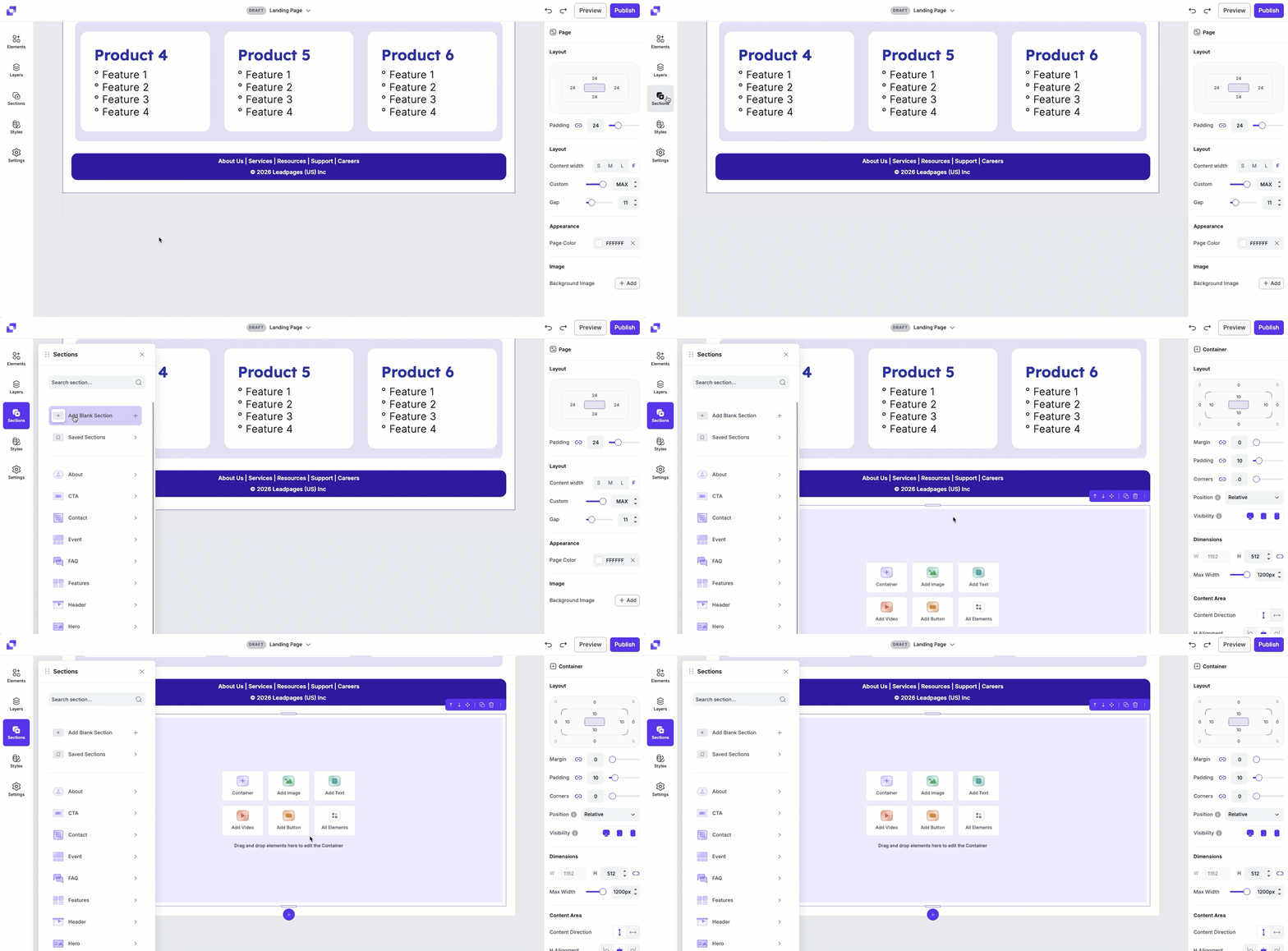
You can also add a blank section directly from the canvas while editing your page.
- Click the bottom parent container on your page.
- You’ll see a “+” icon at the bottom of the section.
- Click the “+” icon to add a new blank section.

Saved template
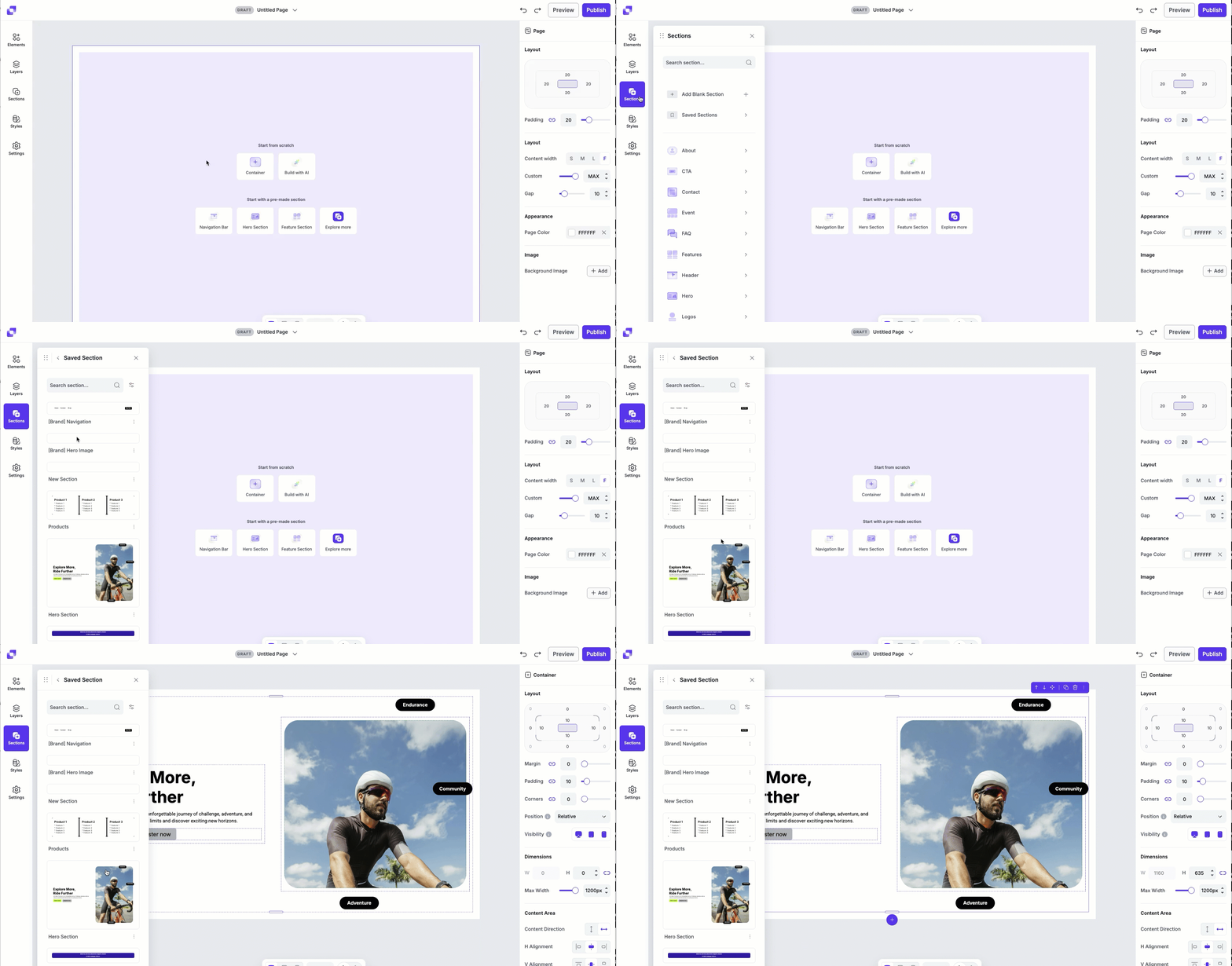
You can easily add saved sections to your page using the Sections panel.
- Open the Sections panel and navigate to Saved Sections.
- Find the section you want to add to your page.
- To place a section, you have two options:
a. Click to add: Click on the page canvas (or on a specific container) and the click the section template you want to add. It will be added either at the bottom of the page or inside the selected container.
b. Drag and drop: Click and drag the section template from the panel to the exact spot on the canvas where you want it to appear.
To learn more about how to save a section, you can jump to this section in the article.
Pre-built template
To add a premade section:
- Open the Sections panel.
- The prebuilt templates will be shown below Saved Sections, divided by a line.
- Click a category to see the prebuilt templates for it.
- To place a section, you have two options:
a. Click to add: Click on the page canvas (or on a specific container) and the click the section template you want to add. It will be added either at the bottom of the page or inside the selected container.
b. Drag and drop: Click and drag the section template from the panel to the exact spot on the canvas where you want it to appear.
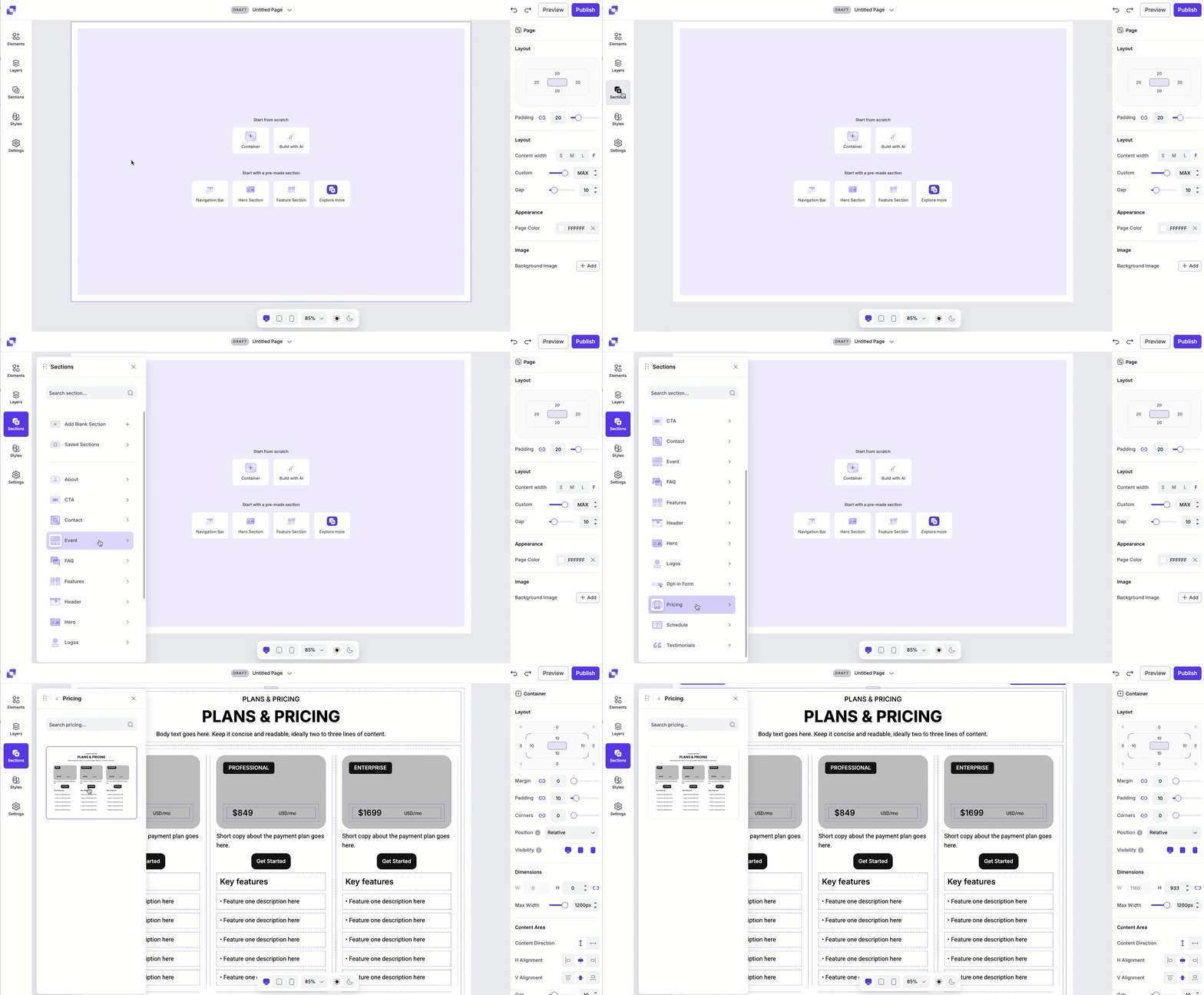
Using these options makes it easy to add and position sections exactly where you want them, whether you’re reusing saved content or inserting prebuilt layouts. After adding a section template to your page, you can further customize its look and feel by editing its content as well as adding/removing elements, etc.
Managing sections
Reorder section
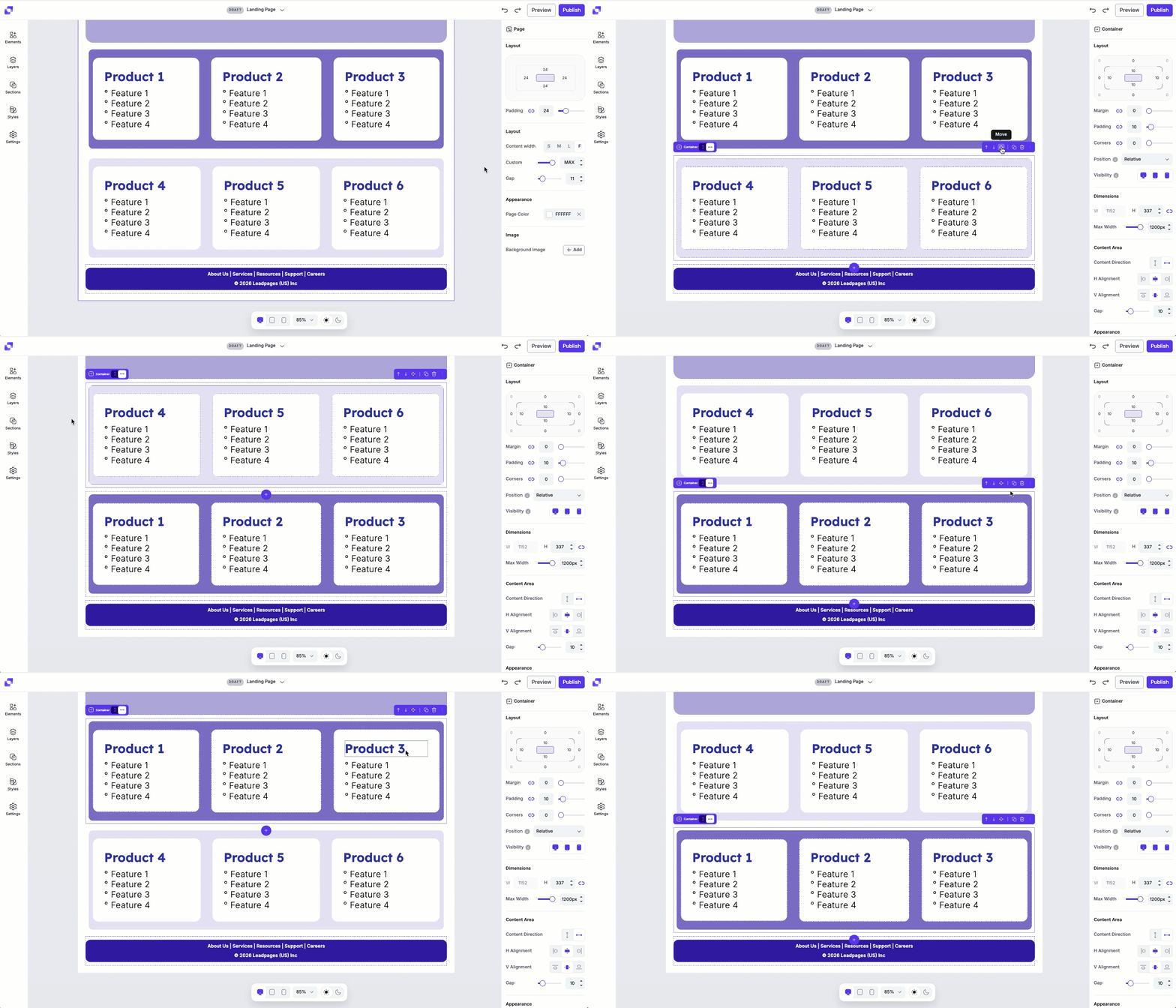
There are two ways that you can rearrange your sections on the canvas:
- Drag & drop: Click the Move icon in the quick actions bar and drag the section up or down the canvas to reposition it.
- Arrow controls: Use the Up or Down arrows in the quick actions bar to move it one position at a time.
Duplicate a section
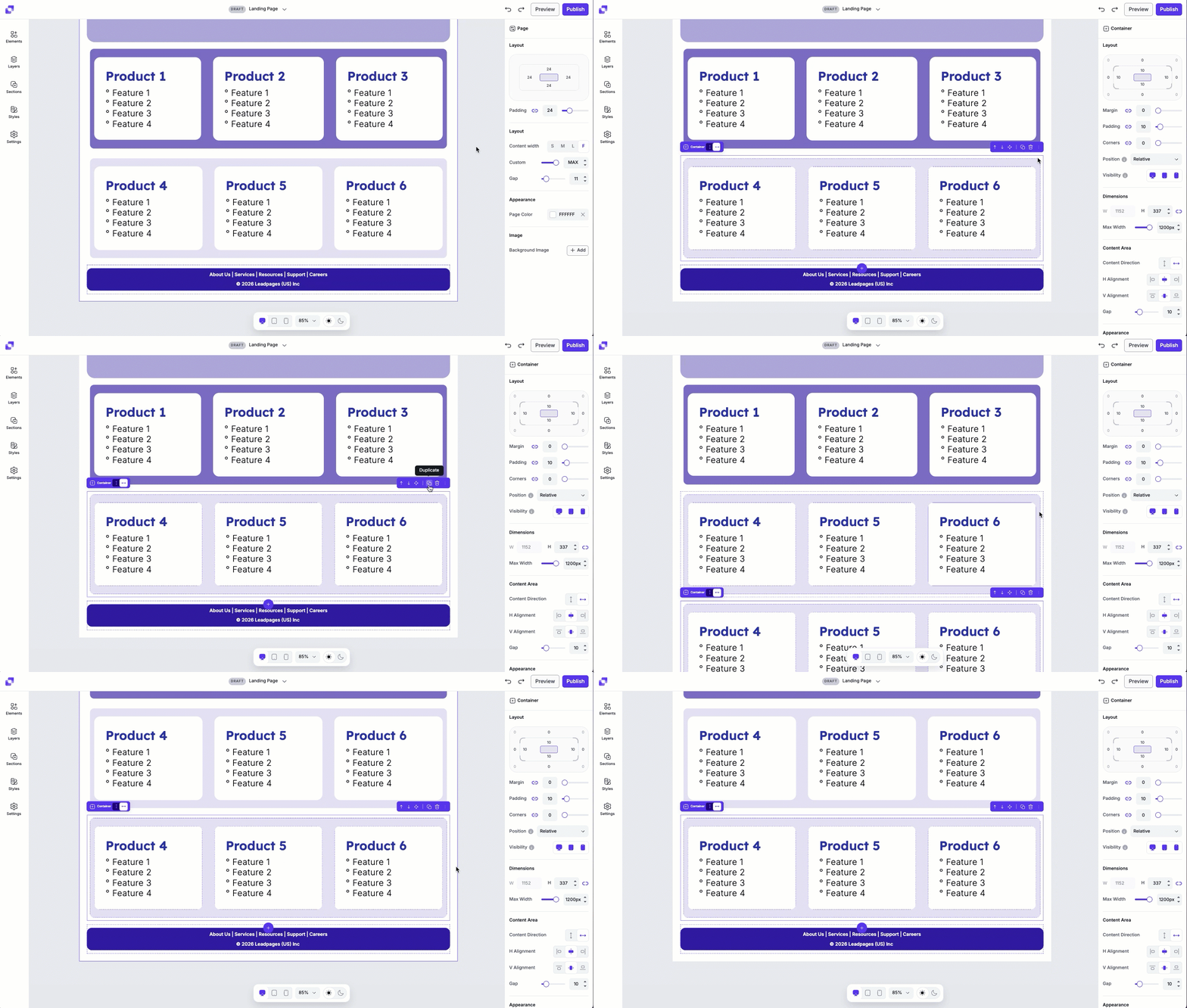
Duplicating a section creates an exact copy of it, allowing you to reuse layouts without rebuilding from scratch.
- Click on section you want to duplicate.
- Click the Duplicate icon, visible in the quick actions bar.
- A copy of the section will appear directly below the original.
Delete a section
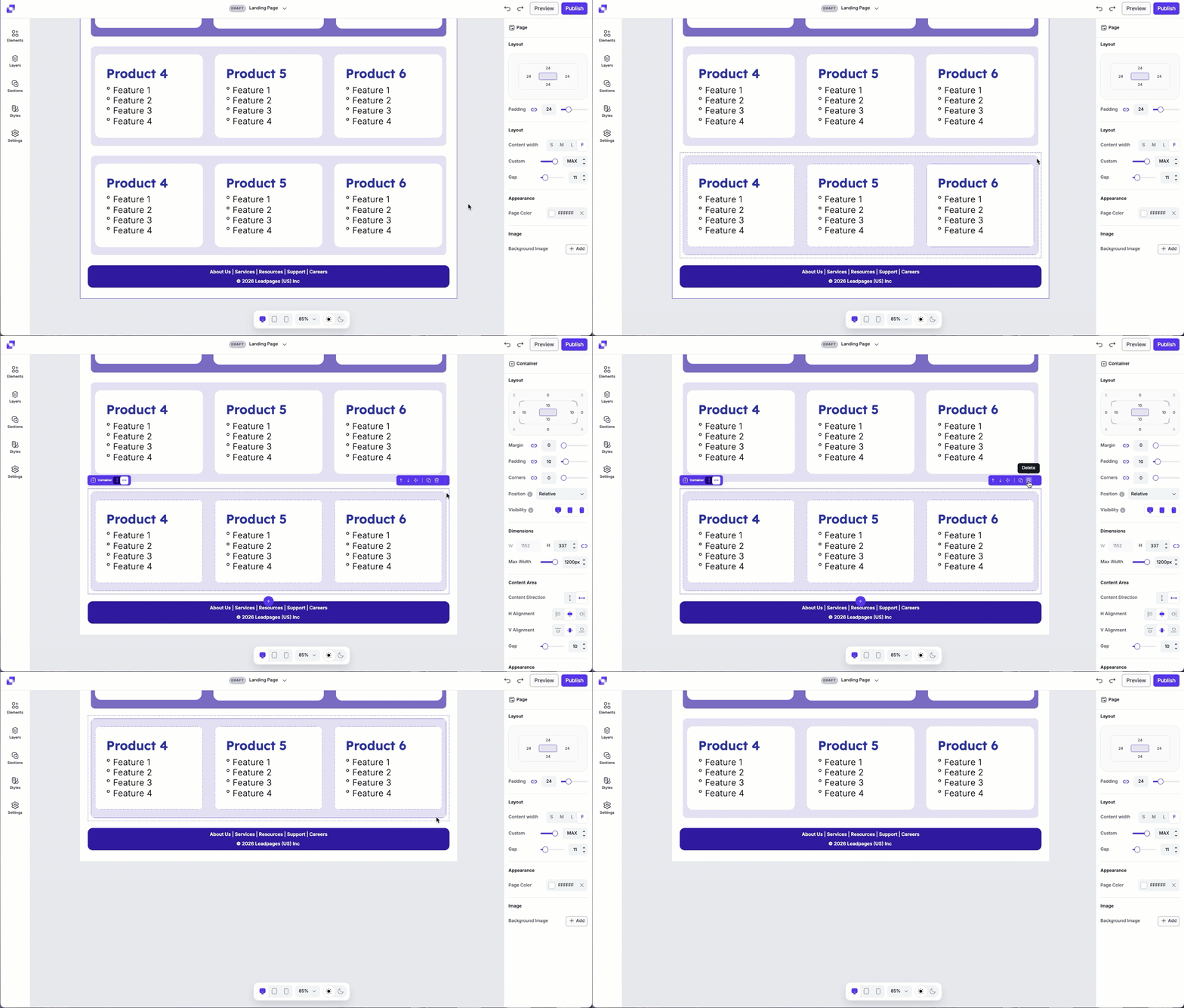
There are two ways to delete a section on your page.
- Click the trash can icon visible in the quick actions bar for the section.
- Go into the section's actions menu, then select Delete.
Rename section
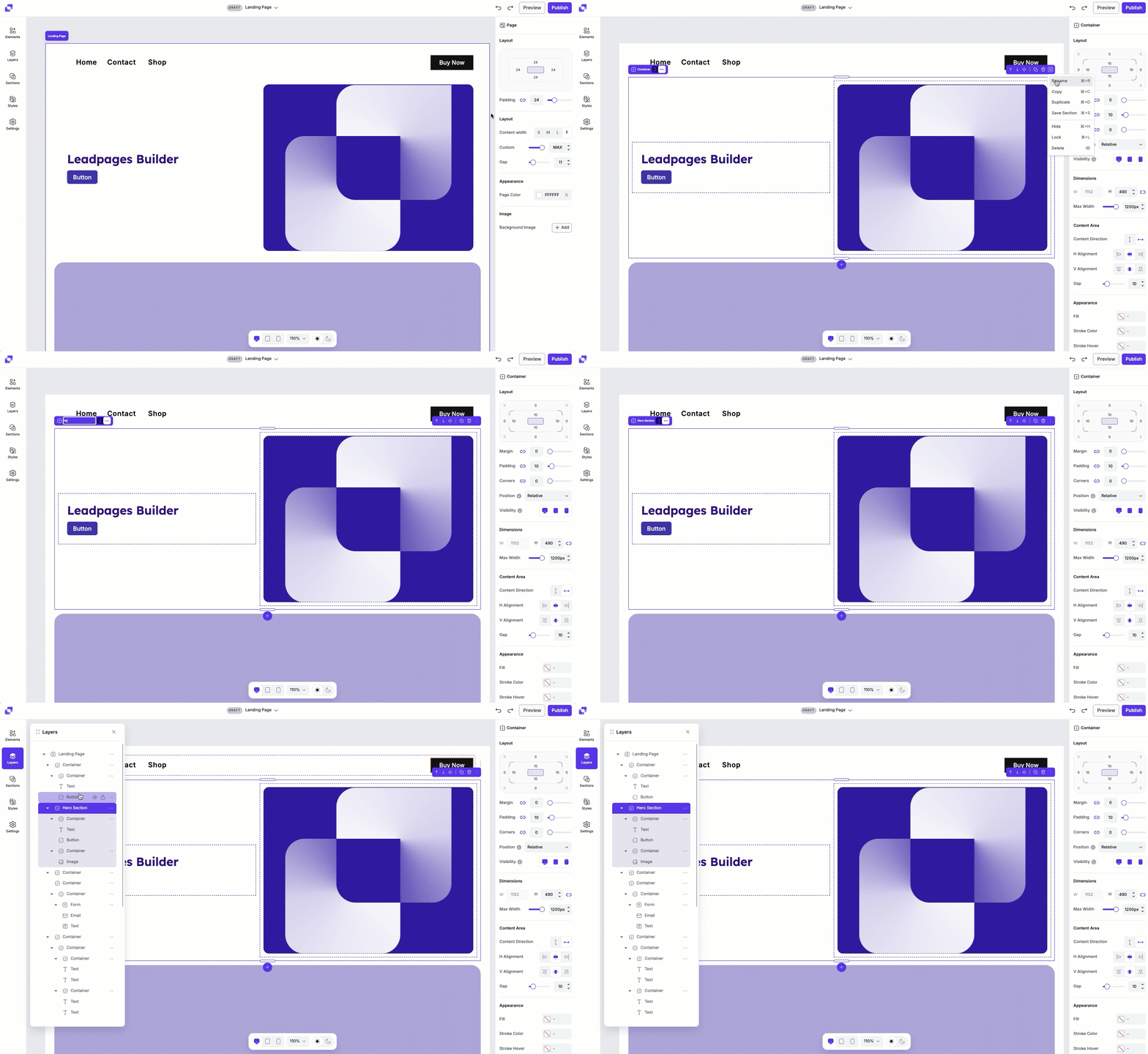
Giving your sections clear, description names makes it easier to stay organized. Renaming helps you quickly identify sections in the Layers panel and on the canvas, so you can find and edit content faster.
- Click the section on the canvas.
- Open the actions menu (:).
- Select Rename.
- In the title tag on the canvas, type the new name and press Enter to save.
- The new name will be reflected on canvas and in the Layers panel.
Copy + paste a section
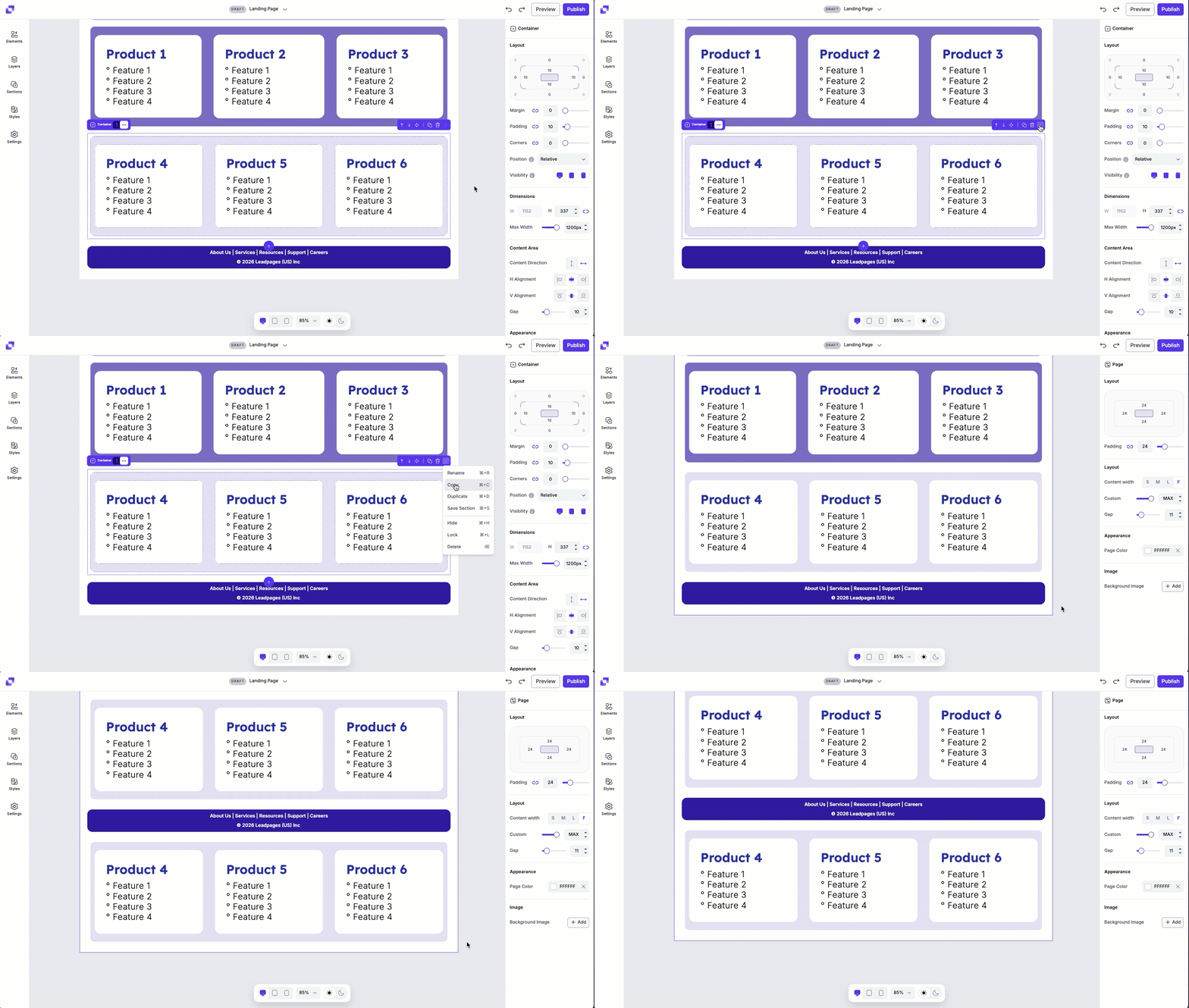
Sections can be copied and pasted in your page and other Page Studio pages.
- Click on the section you'd like to copy, then click the actions menu (:).
- Select Copy.
- To paste, click on the landing page layer, then press CMD + V on your keyboard.
- The copied section will appear at the bottom of the page.
Hide/Show a section
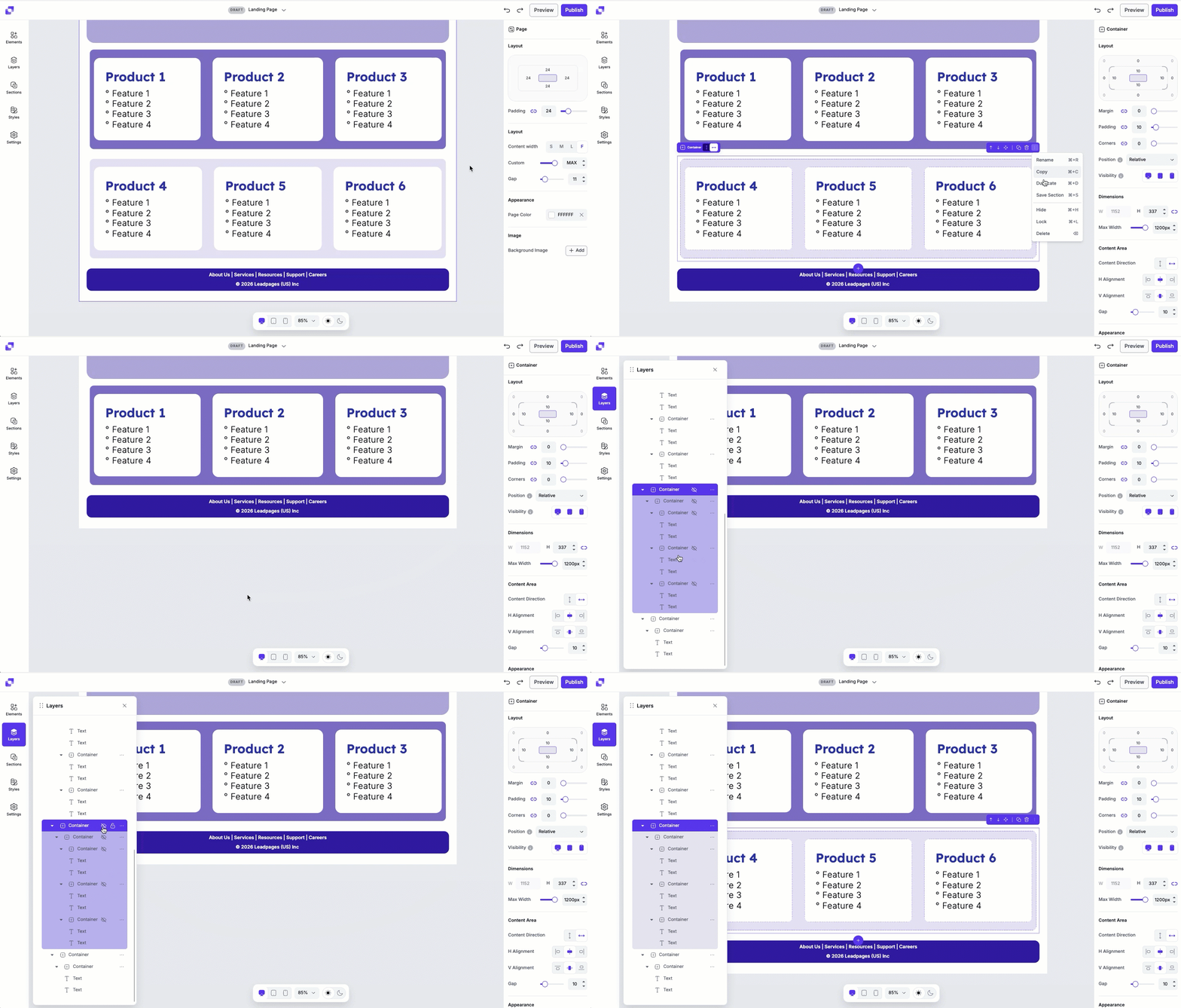
Hiding a section temporarily removes it from the page view without deleting it.
- Click on the section you want to hide.
- Open the actions menu (:).
- Select Hide to remove it from view.
- In order to make the section visible again, you'll need to:
• Navigate to the Layers panel
• Locate the section you've hidden. It should have the visibility icon crossed out.
• Click the eye icon to make the section visible again.
Lock/Unlock a section
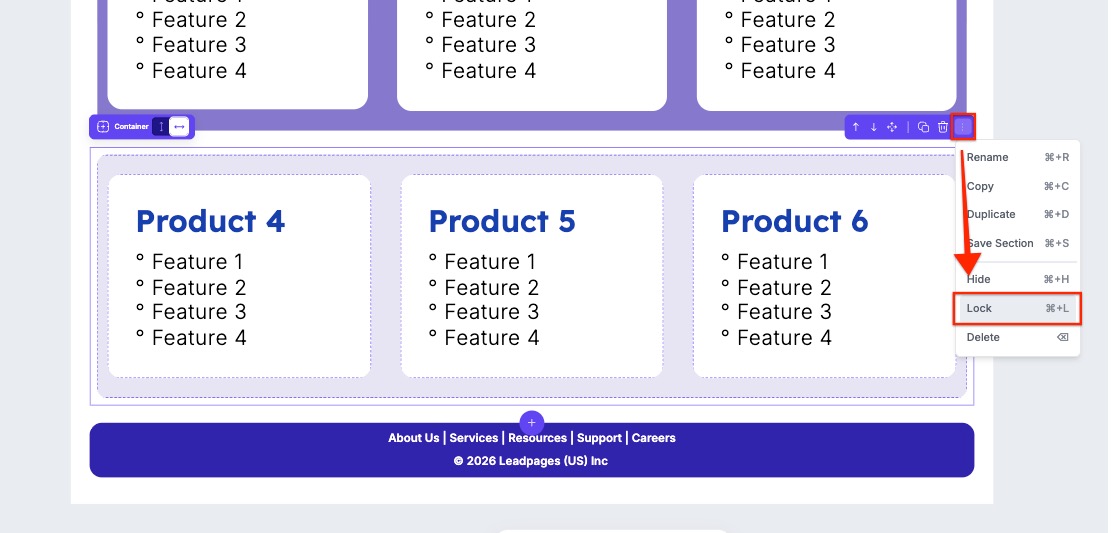
Locking a section prevents changes from being made accidentally.
- Click on the section you want to lock.
- Open the section's actions menu (:).
- Select Lock to prevent edits, or Unlock to allow changes again.
Save a section
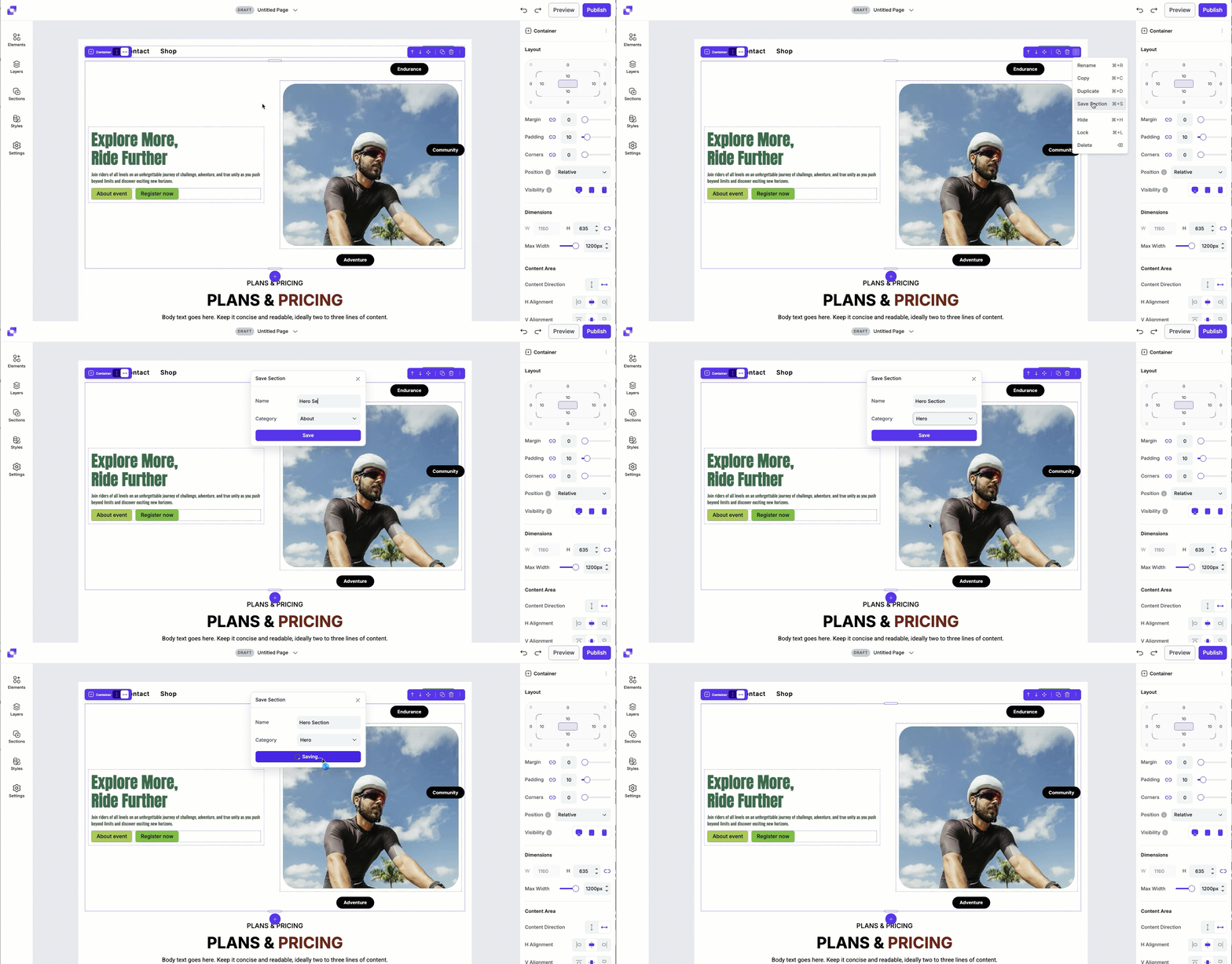
To save a template, all you have to do is:
- Navigate to a container element on your canvas.
- Click the actions menu (:) and select Save Section.
- You’ll be prompted to name the section and select a category for it.
- Once saved, it will appear under Sections>Saved Sections.
Filtering saved section templates
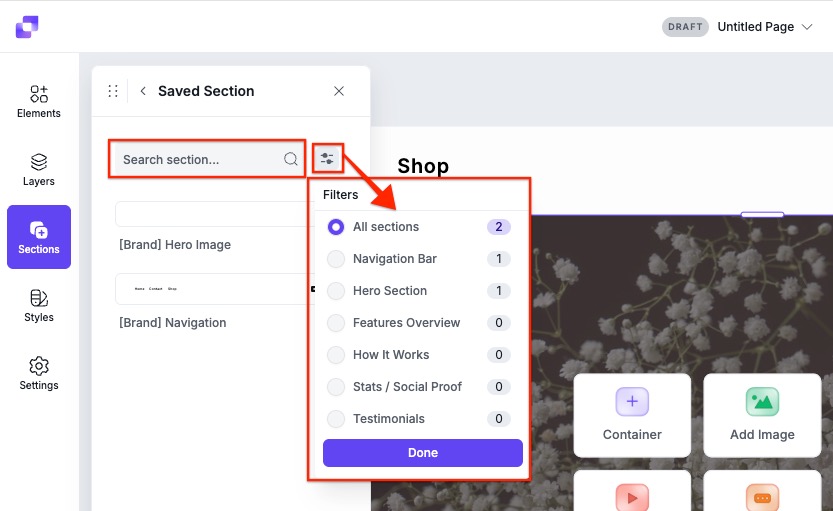
You can filter section templates to quickly find the layout you need. When you open the Sections panel, navigate to Saved Templates.
- You can use the search bar at the top of the panel to filter templates within whatever category you're viewing.
- You can also use the filter icon to search for templates within specific categories.
Frequently asked questions
Can I save a section from one page and use it in another?
Yes! Any section that you save will be accessible in any Page Studio page you create. You will not be able to use the saved section in Classic Builder pages.
I tried to add a section template to my page and it’s not working! Why is that?
Make sure that you either have the page or a container selected on the canvas. If none are selected, you won’t be able to add the section template.
I don't see the up and down arrows to reorder my section, why?
If you do not see the up and down arrows, you are most likely not in the parent container (the section), but in a nested container.
Will editing a saved section affect other pages that use it?
No. Once you add a saved section to a page, it becomes independent on that page. Any edits that you made to the section will apply only to that page and will not affect the same saved section on other pages.
If you want the updated version to appear on other pages, you'll ned to save the edited section again and then add that updated version to each page where you want the changes reflected.
Need more help?
You can always get in touch with our support team—just click Support in your Leadpages navigation menu, or submit a ticket ↗