
MailerLite is a flexible email marketing platform that helps you collect, organize, and act on your subscriber data. By integrating MailerLite with our automations feature, you can automatically send your leads from your landing pages, sites, and conversion tools directly into your MailerLite subscription groups—powering targeted campaigns.
The fine print
- Integrating with MailerLite requires using our automations feature. MailerLite is only compatible with the custom forms widget, not our standard form widget.
- For now, only one MailerLite account can be connected to each automation. As well, only one action event, Add/Update Subscriber, can be completed per automation at this time.
Integrate your MailerLite account
On your Leadpages dashboard, locate Assets in the left-hand navigation, then click the drop-down arrow next to Integrations. Select Core.
Choose MailerLite in the Core integrations menu, then select Connect in the corresponding pop-up. You will be prompted to enter your Private API key.
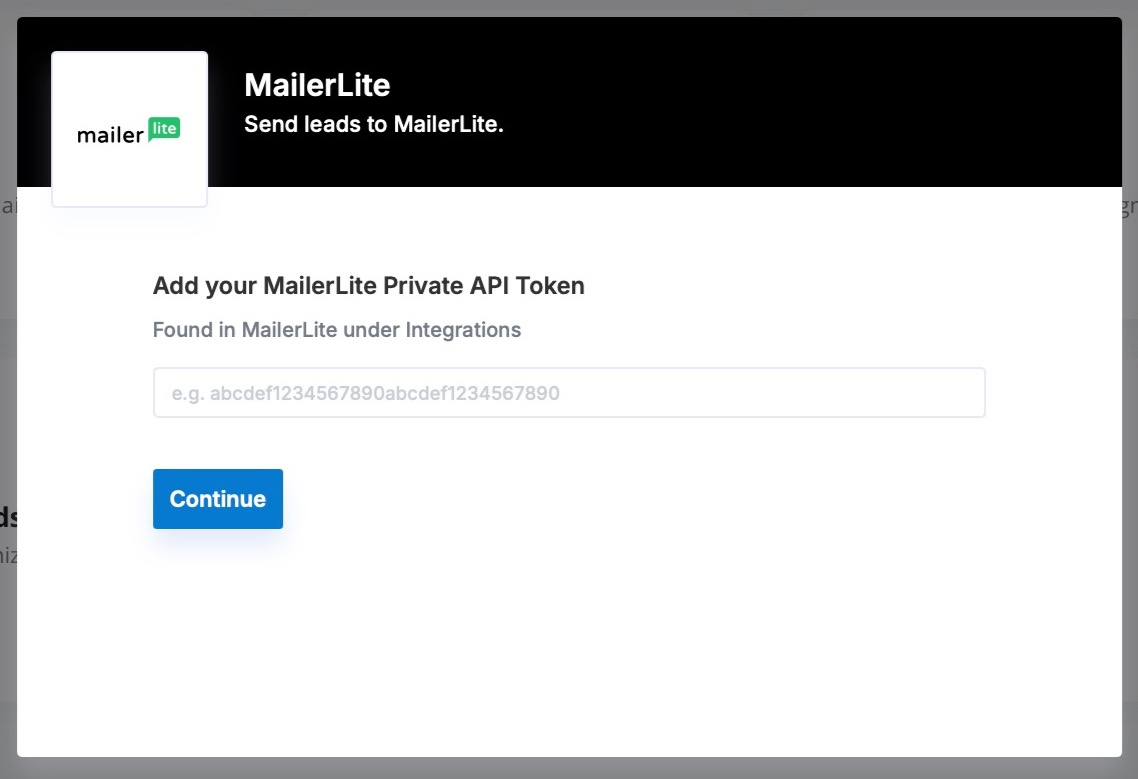
In your MailerLite account, you can find the Private API Key under Integrations → API. Click Use, then click Generate new token on the Developer API page.

When creating your API token, select the level of IP access. We recommend selecting All IPs allowed to prevent any unexpected errors due to authorization issues. 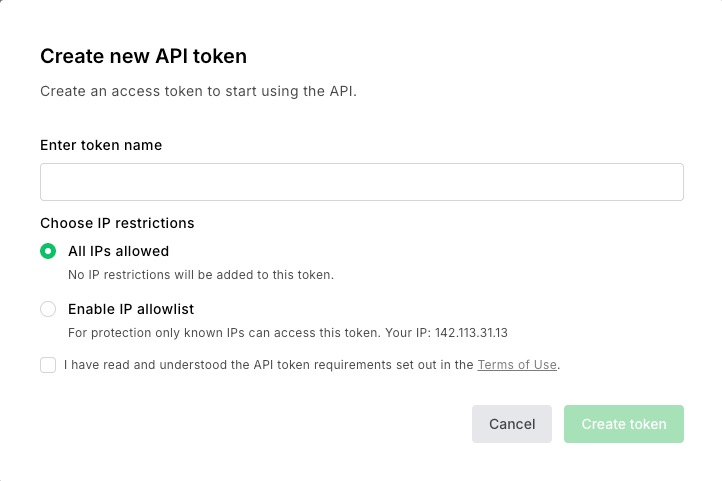
Keep in mind that you will only see your private API key in its entirety once. Record the full key in a secure place, such as a password manager. In this screenshot, the actual API key is hidden.
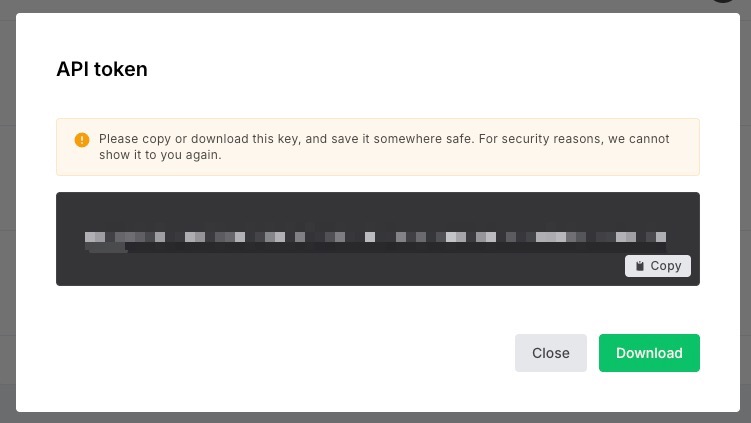
Paste your API key into pop-up in Leadpages and click Continue to connect your MailerLite account.
Send leads to MailerLite
With automations, all leads collected from your Leadpages forms will appear in your Subscribers page in MailerLite.
- If you do not select a group in your automations 'Choose Destination' step, the contact will be added to your MailerLite account but will only appear in your main Subscribers list.
- If you select a group, the contact will appear both in your chosen group and in your main Subscribers list.
New contacts are created automatically, and existing subscribers are updated with the latest information form submission sent.

Frequently Asked Questions
How do custom fields in MailerLite work with my Leadpages automations?
Custom fields you create in MailerLite→ Subscribers→ Fields are automatically available for mapping inside your Leadpages automation. After adding a new field in MailerLite, return to your automation's field-mapping step and you'll see the custom fields appear in the dropdown list of MailerLite fields.
Can I set up MailerLite tags in automations?
No. Tags are not supported through the Leadpages + MailerLite integration. At this time, automations can only send contact data to MailerLite groups, and pull in MailerLite custom fields for mapping within the automation.
Does Leadpages sync GDPR consent fields to MailerLite?
Yes! If you create a custom consent field on MailerLite's end, you can map the corresponding Leadpages consent field during the automation setup. Once mapped, each new lead will pass their consent status to MailerLite, allowing you to see whether they provided or declined consent.
Need more help?
You can always get in touch with our support team—just click Support in your Leadpages navigation menu, or submit a ticket ↗