
Glorify offers different plans based on the number of users, available projects, AI credits, and cloud storage. To see a full breakdown of features and pricing, visit our Pricing Page↗.
Changing plans
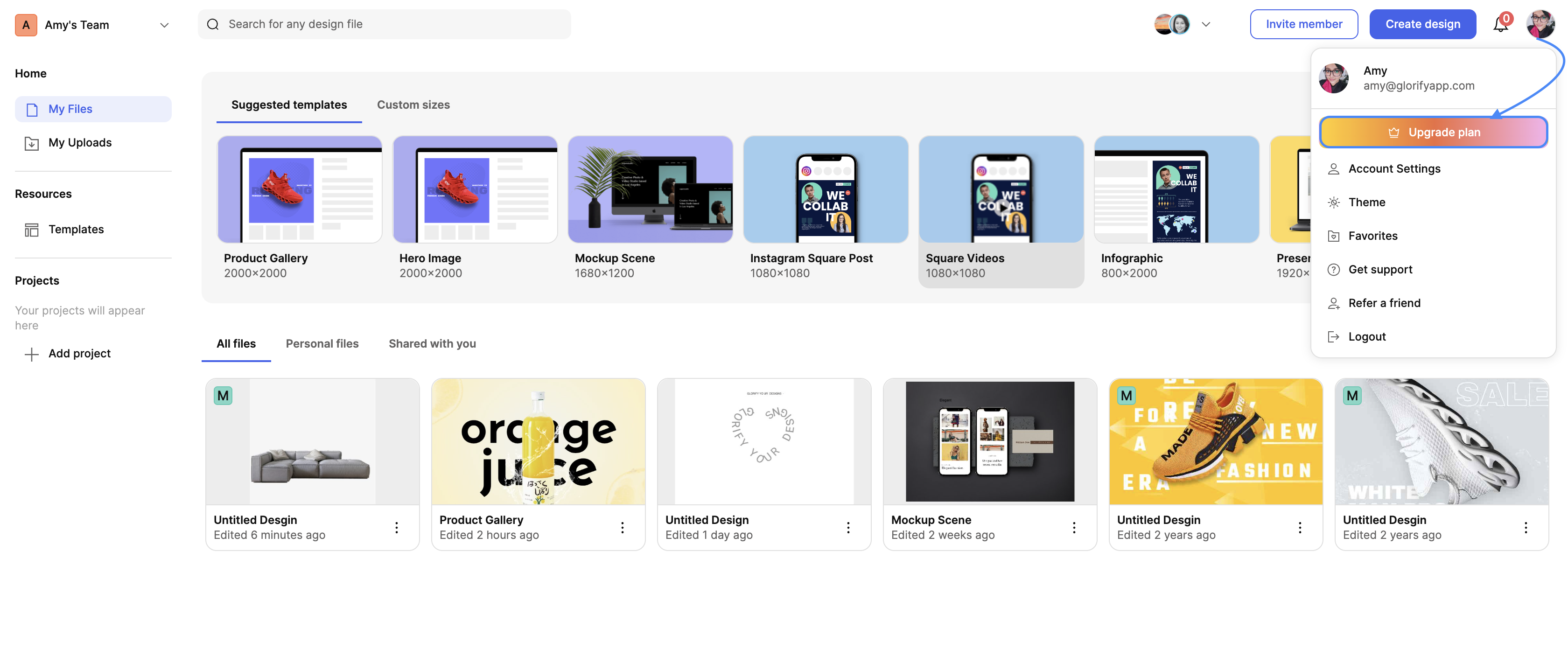
Upgrade your plan
- From your dashboard, click on your account avatar and select Upgrade from the dropdown menu.
- A pop-up modal will display the next available plan based on your current subscription.
- Select your new plan and click Confirm to complete the upgrade.
Downgrade your plan
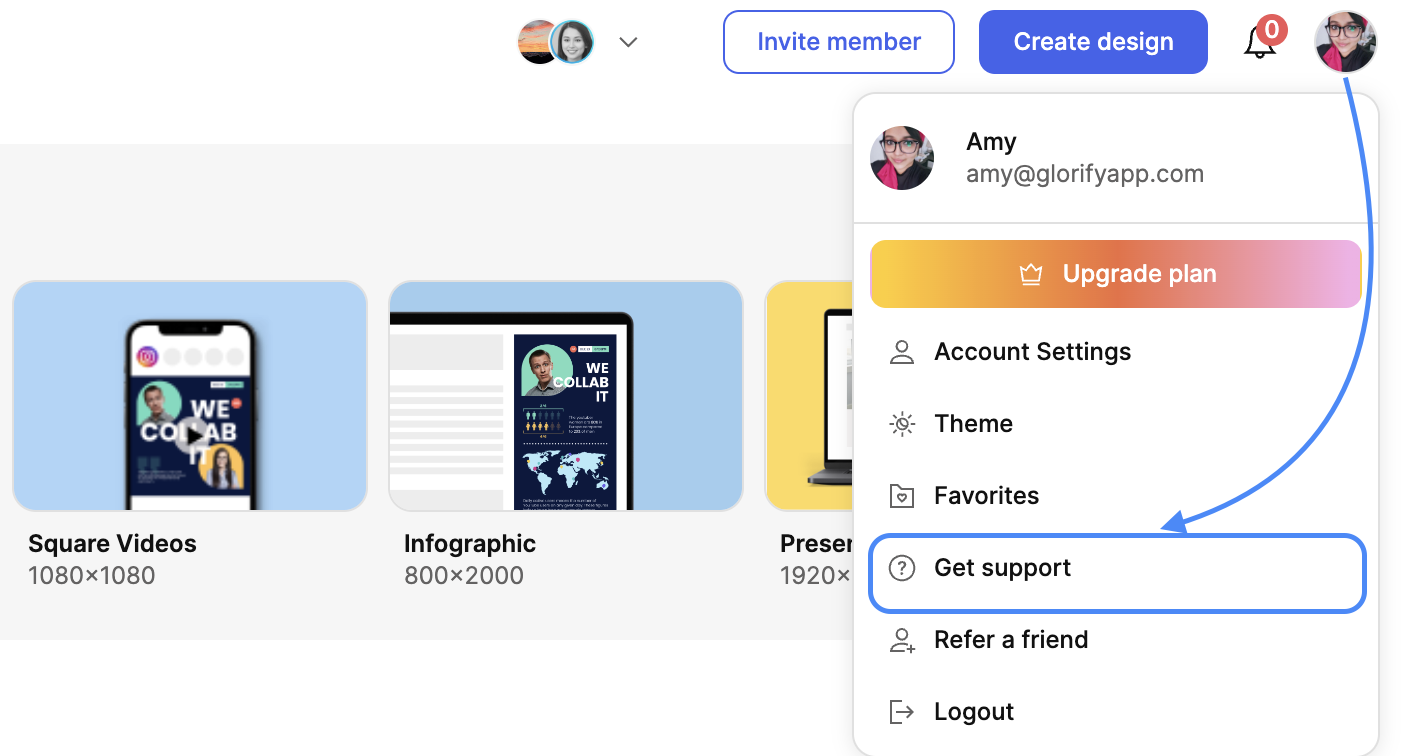
- Click on your account avatar and select Get Support from the dropdown menu.
- Enter your downgrade request in the message field and click Send.
- If an agent is available, you can chat with them directly. Otherwise, they will follow up with you via email to process your request.
Cancel your subscription
How to cancel your plan:
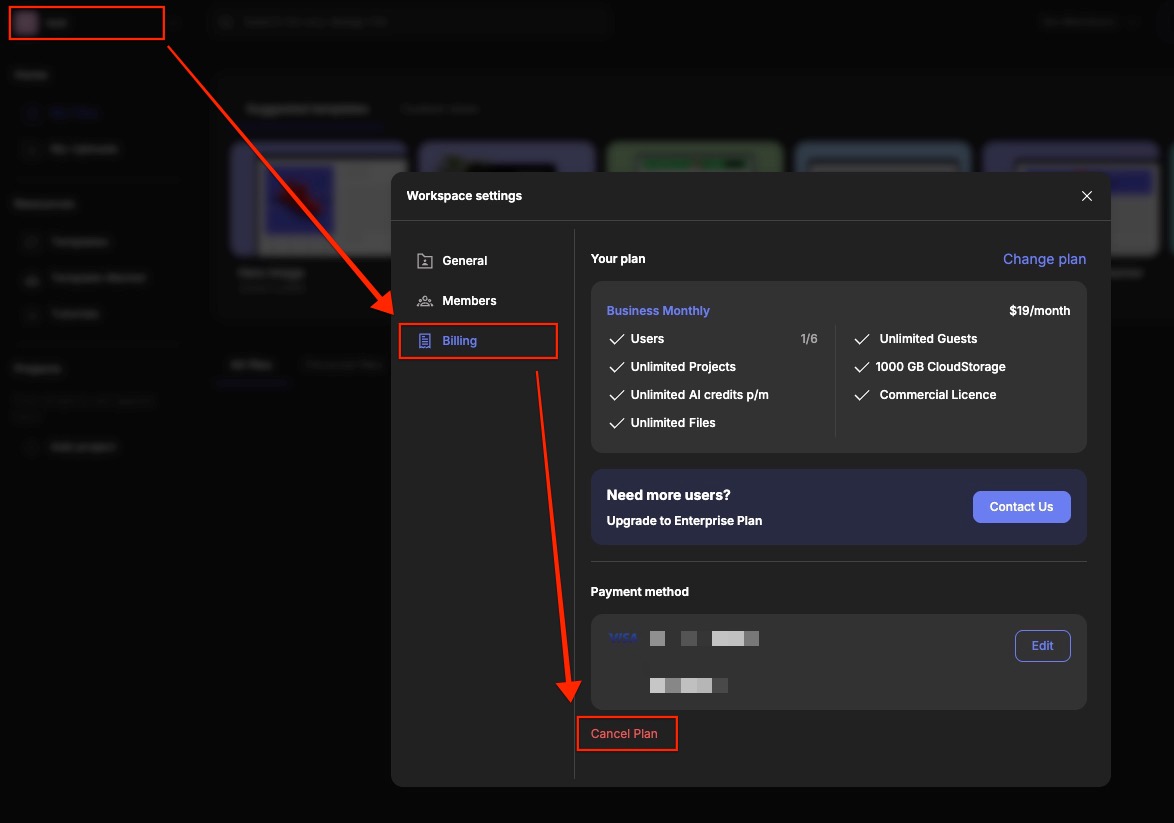
- Click on your Workspace name in the top-left corner of your dashboard.
- Select Workspace Settings from the drop-down.
- Navigate to the Billing tab, then click Cancel Plan.
- Follow the on-screen prompts to confirm your cancellation.
Once your plan is cancelled, your account will remain active until the end of your current billing cycle. After that, it will close completely.
Frequently asked questions
Can I try Glorify before paying?
Yes! We have a free 14-day trial that you can cancel anytime. When you cancel your account it will remain open until the end of your trial period.
← Explore more Glorify articles
Need more help?
You can always get in touch with our support team—just click Support in your Leadpages navigation menu, or submit a ticket ↗