
Engage your visitors, capture leads, and provide instant answers — all with Lead Agent. This interactive tool acts as a smart assistant on your website and pages, helping you connect with potential leads in real time. Whether its answering common questions, guiding visitors to the right resources, or collecting lead information, Lead Agent ensures a seamless and personalized experience.
Access the Lead Agent Builder
To access Lead Agent:
- Log in to your Leadpages account.
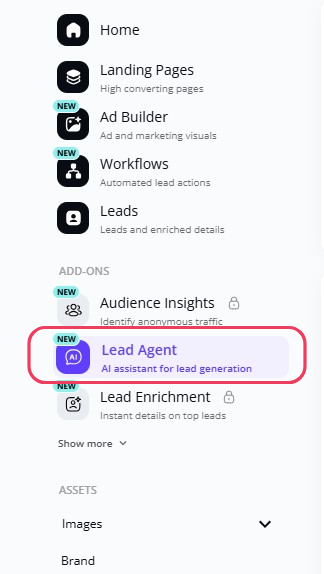
Under Add-ons, navigate to Lead Agent.
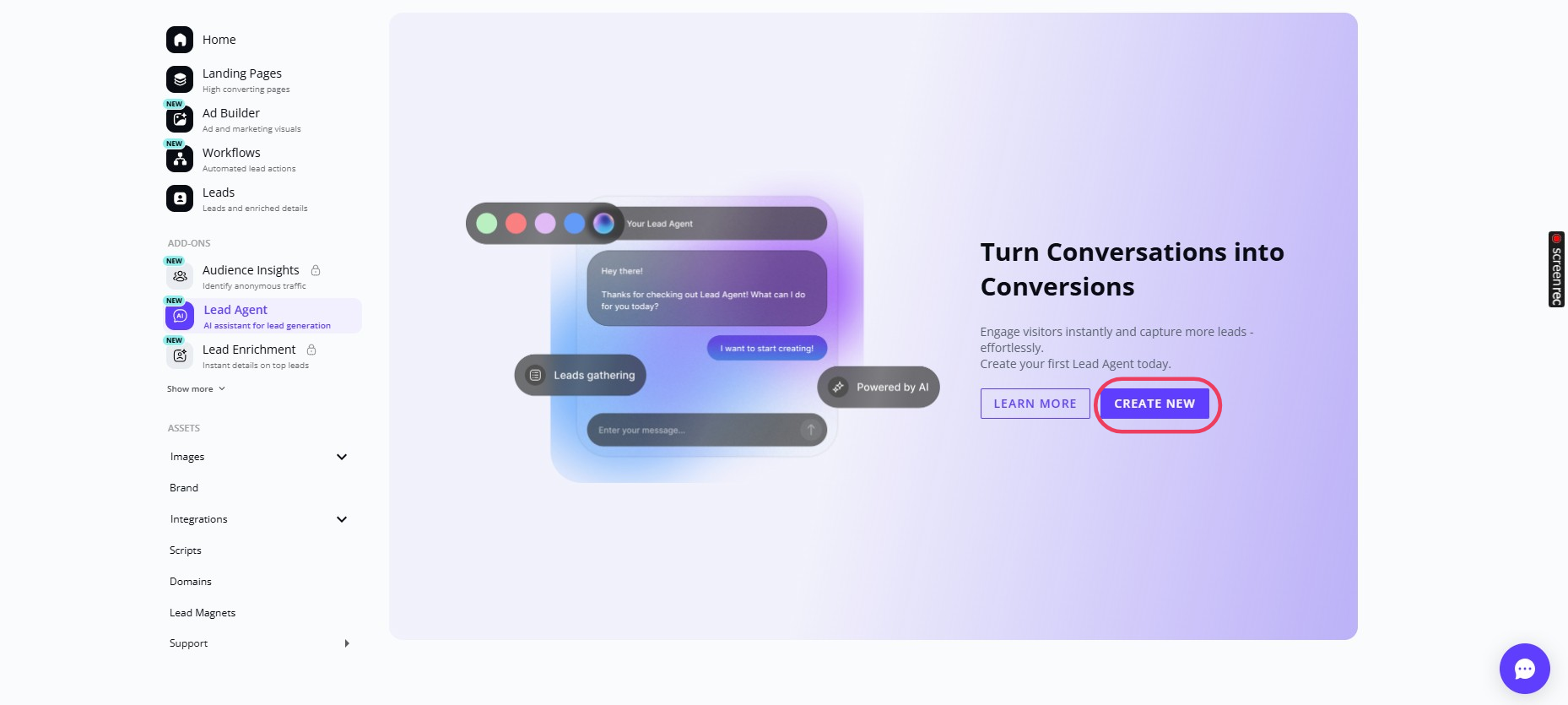
Click Create New Lead Agent to get started!
Define your Lead Goals
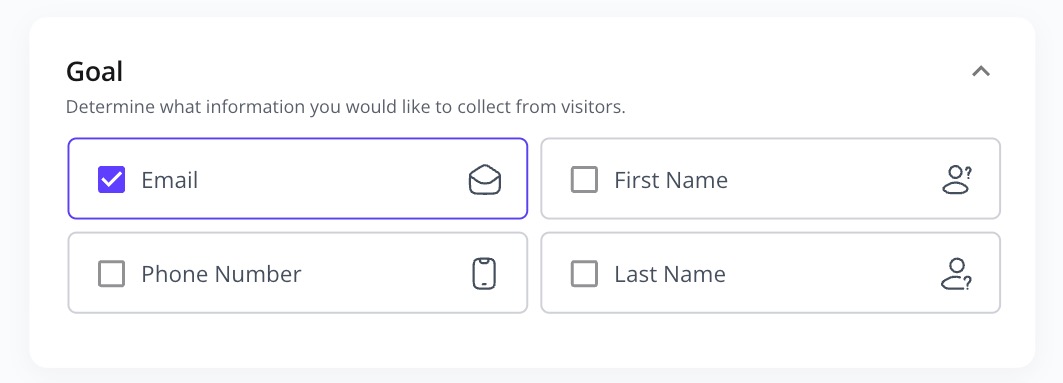
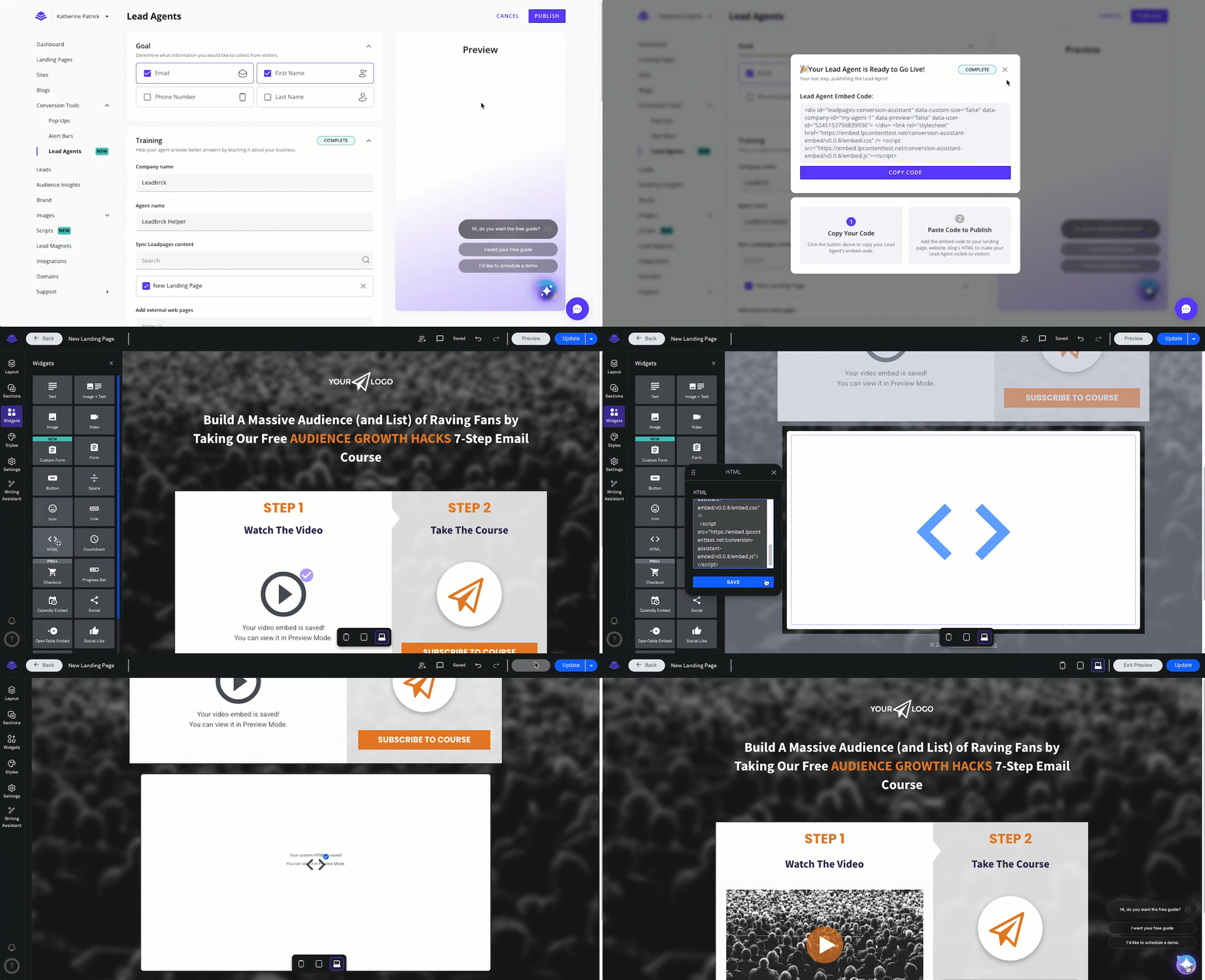
In the Goal section, you can choose what information you want to collect from leads, such as:
- First Name
- Phone Number
- Last Name
Simply check the boxes next to the fields that are most relevant to your needs.
Customize your Lead Agent
Your Lead Agent learns how to engage visitors based on the information you provide about your business.
Add Company Information
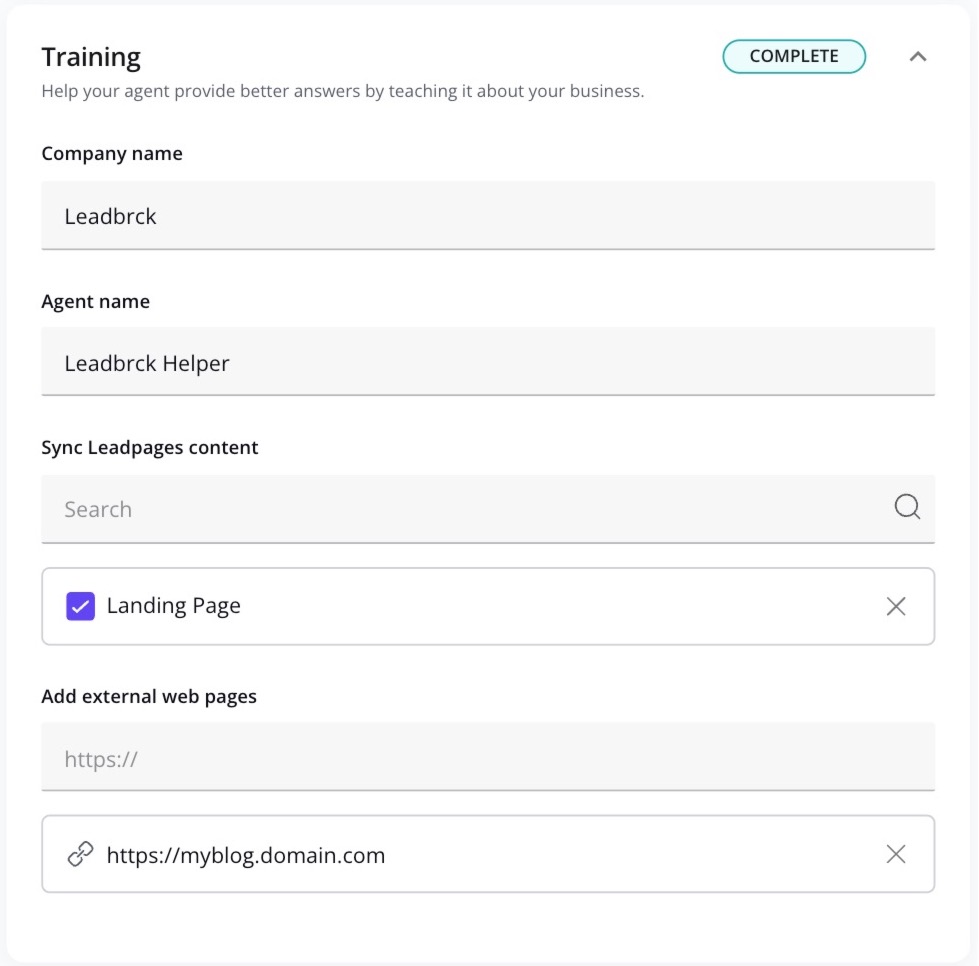
- Enter your Company Name.
- Add an Agent Name (this is how your agent will introduce itself to your visitors).
Sync Leadpages Content
- Select relevant landing pages from Leadpages to sync with your Lead Agent. This ensures that the agent has access to up-to-date content directly from your own pages, enabling it to provide more accurate and detailed responses.
Add External Web Pages
- In addition to syncing Leadpages landing pages, you can also include external URLs for your Lead Agent to reference. This enhances your agent’s ability to provide comprehensive answers from additional resources like blog posts, product pages, or external FAQs.
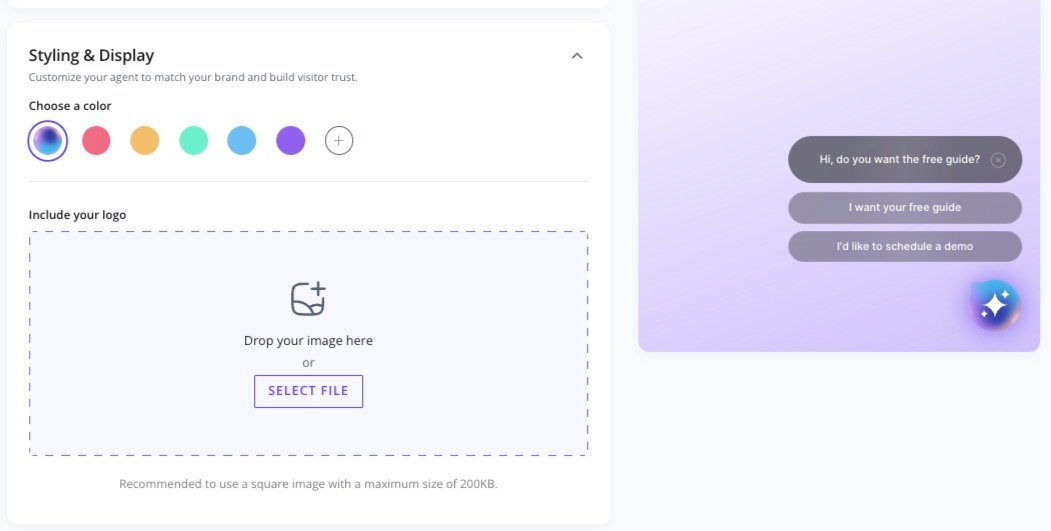
Customize Styling & Display
Make your Lead Agent feel like an extension of your brand.
- Choose a color to match your agent to your branding.
- Upload your logo for a personalized touch. Recommended to use a square image with a maximum size of 200KB.
You’ll see a live preview of your changes on the right as you go, so it’s easy to fine-tune the look.
Summarize your Business
Help your Lead Agent understand what your company is all about, so it can deliver more tailored interactions.
- Provide a brief summary to outline your key product or service.
- Define your business offering in more specific detail.
- Describe your target audience to help the agent craft more personalized responses.
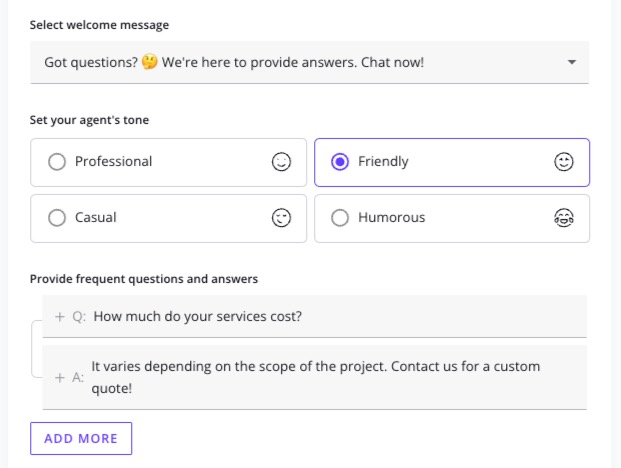
Set the Agent's Personality
Customize the tone of your agent to match your brand’s voice.
- Choose from these personality options:
- Professional
- Friendly
- Casual
- Humorous
- Add a welcome message to greet visitors and set the tone for their interaction with your agent.
- Add frequently asked questions (FAQs) and responses to ensure your agent always provides accurate, helpful answers.
Train Your Lead Agent
Once you’ve finalized the styling and the information provided to your Lead Agent, click the Train Agent button. This will process your updates and prepare the agent for publishing.
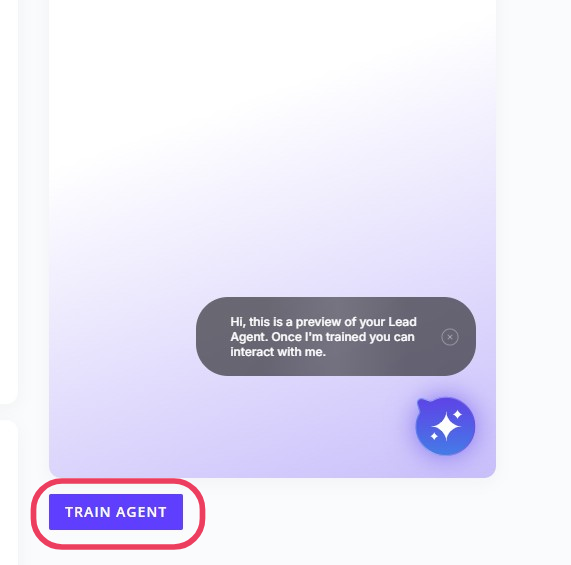
Tip: Changes made to the training data are not automatically synced. If you update the information later, you must click Train Agent again to apply the new edits.
Privacy Settings
Ensure your Lead Agent is fully compliant by setting up a data privacy message and linking to your privacy policy.
Publish your Lead Agent
Once you’re happy with your settings, you’ll be ready to publish your Lead Agent!
Click Publish in the top-right corner.
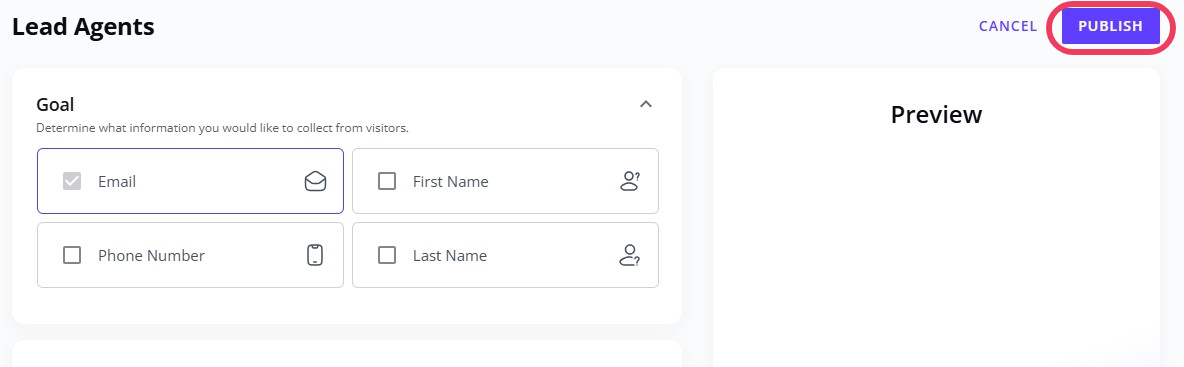
- A pop-up will appear and display the Lead Agent embed code.
- Click Copy Code and paste it into your landing pages, websites, or blogs.
- Update or Publish the pages where the Lead Agent embed code has been added to.
Once the code has been added to your assets, your agent will be live and start engaging with visitors, collecting leads, and answering questions 24/7!
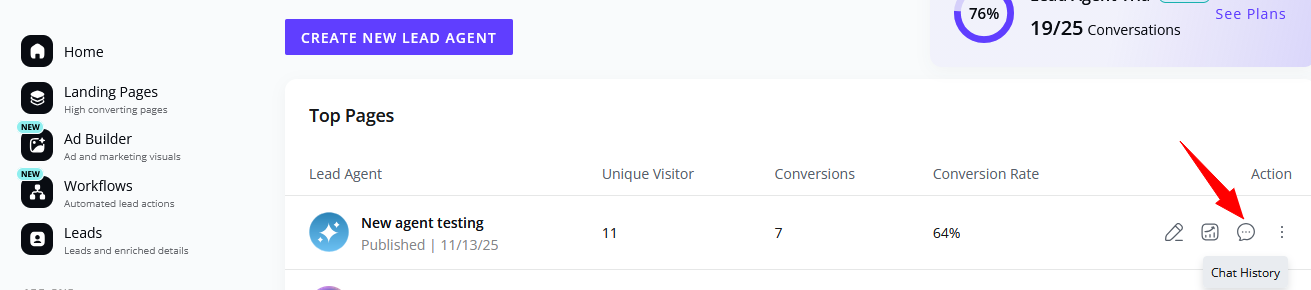
Chat History
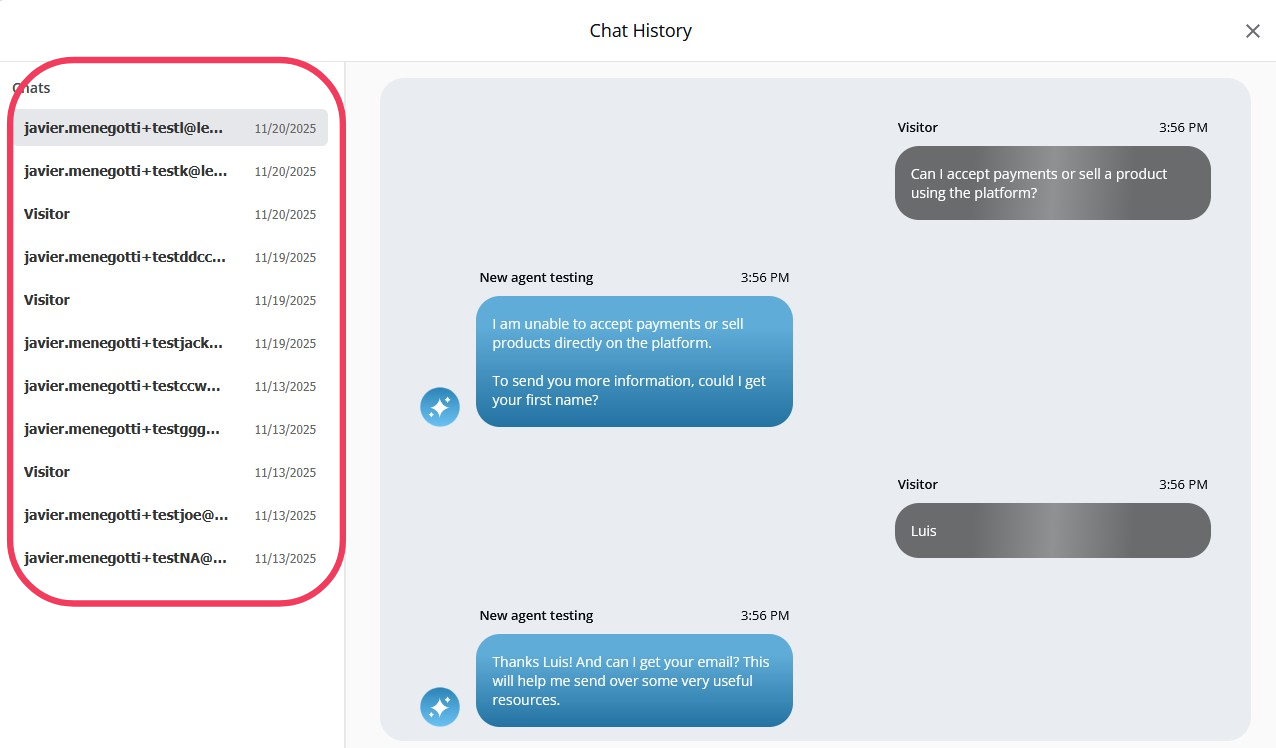
You now have access to complete conversation transcripts for each of your agents. This makes it easy to review exactly what was said during every interaction. By analyzing these transcripts, you can identify areas where your agent may need additional training or where you might want to expand the information provided in your "Frequently Asked Questions."
Keep an eye out for:
- Visitor drop-off points
- Unhandled objections
- Vague responses
- Repeat questions
Each conversation is an opportunity for you to refine training for your Lead Agent.
Plus, you can create content off of repeat questions. Add FAQs to your website, create social content, or improve messaging on your website based on what your visitors want to know.
You can quickly identify which conversations resulted in real leads and which interactions were simply from visitors.
Frequently asked questions
Can I embed Lead Agent on websites or pages outside of Leadpages?
Yes! Lead Agent can be embedded on non-Leadpages websites, landing pages, or blogs.
Why is my Lead Agent no longer showing up on my pages?
If your Lead Agent isn’t appearing, it may be because you’ve reached the maximum number of conversations allowed on your plan. To increase your agent’s conversation limit, please contact support to upgrade your plan.
What counts as a full conversation/chat?
A full conversation begins when a visitor starts interacting with the agent and ends when they either close the page or refresh their browser. If they just close the chat box, the conversation is still considered active.
Where can I see my leads?
You can view all captured leads in your Leads library.
What happens if someone closes the chat without submitting their info?
If a visitor starts chatting but doesn’t submit their contact details, that conversation won’t be counted as a lead, since no opt-in information was collected.
How many Lead Agents can I create?
You can create up to 150 Lead Agents per account. The total number of conversations included in your plan will be shared across all the Lead Agents you’ve created.
What counts as a View?
A view is recorded when a visitor opens the chat window but doesn’t send a message or interact further.
Need more help?
You can always get in touch with our support team—just click Support in your Leadpages navigation menu, or submit a ticket ↗