
Got a new card or need to switch the card you use to pay for your Leadpages subscription? Good news, you can update this information right from within your Leadpages account! Check out the steps below for full details.
You can update your billing information by following the steps below:
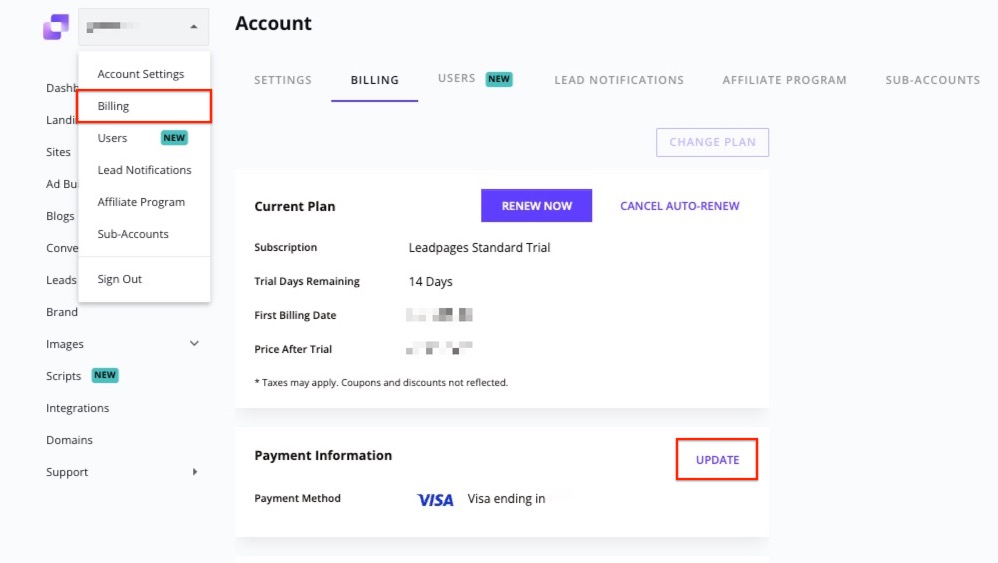
- Click the account name at the top-left corner of your navigation menu and select Billing.
- Click Update next to your card details, under Payment Information.
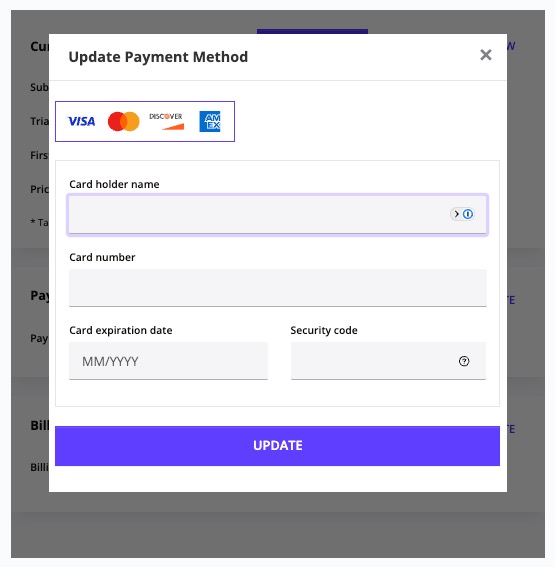
- Fill out your updated payment information. Click here for accepted payment methods.
- Click Update to save your changes.
That’s it! Your payment details are all up to date! If you’re updating your card information after a failed payment, please contact support to let us know you’ve added a new card to your account.
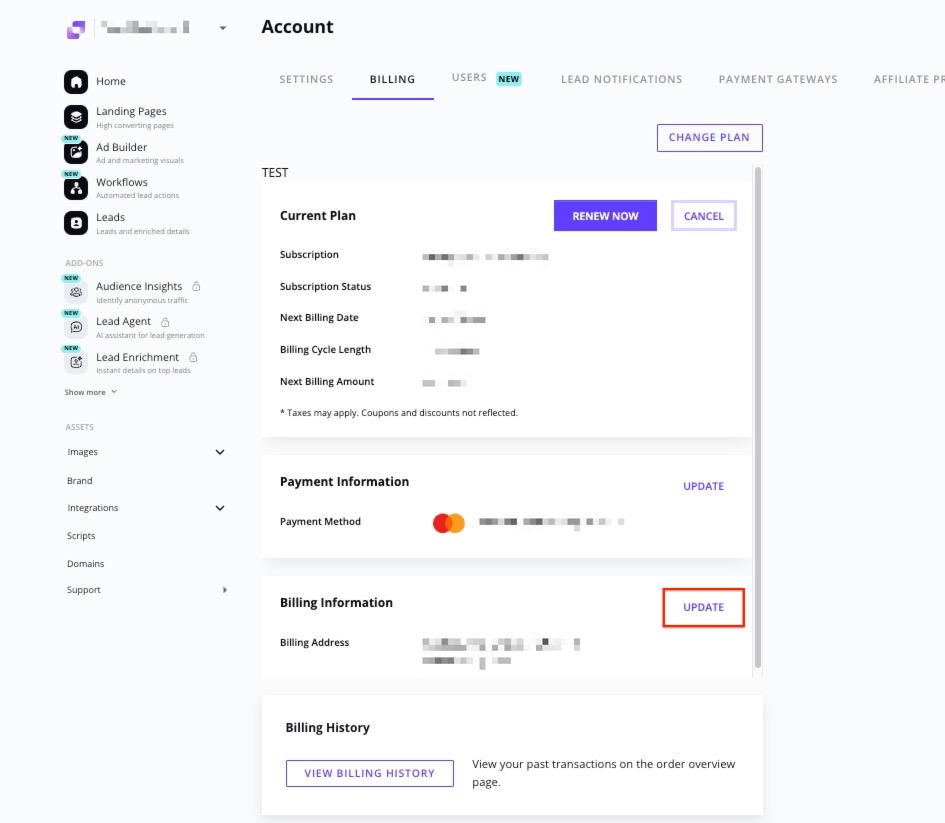
Should you need to update your billing address, simply click the Update text under Billing Information, then fill in the available fields.
Frequently Asked Questions
How do I change my subscription level?
You can upgrade your account at any time from your billing section. For a full guide on upgrading, please see our article here: Upgrade your Leadpages account
If you’d like to downgrade, please reach out to our support team so they can make sure your new plan is fully processed.
How do I change my billing address if using PayPal?
You will want to update your primary address within PayPal first. You can find that under account settings within PayPal. Then once that is updated, go back to Leadpages, click update payment method, connect PayPal, and then it will update the billing address in Leadpages.
Need more help?
You can always get in touch with our support team—just click Support in your Leadpages navigation menu, or submit a ticket ↗